
Few things are more distracting than a news anchor whose lips don’t match the words, or a goal call that comes half a second after the ball hits the net. Audio out of sync is a common issue with any streaming setup, and with 4K Live IPTV it’s almost always fixable in a few minutes. Here’s how to find the cause and fix it.
First: Where Is the Delay Coming From?
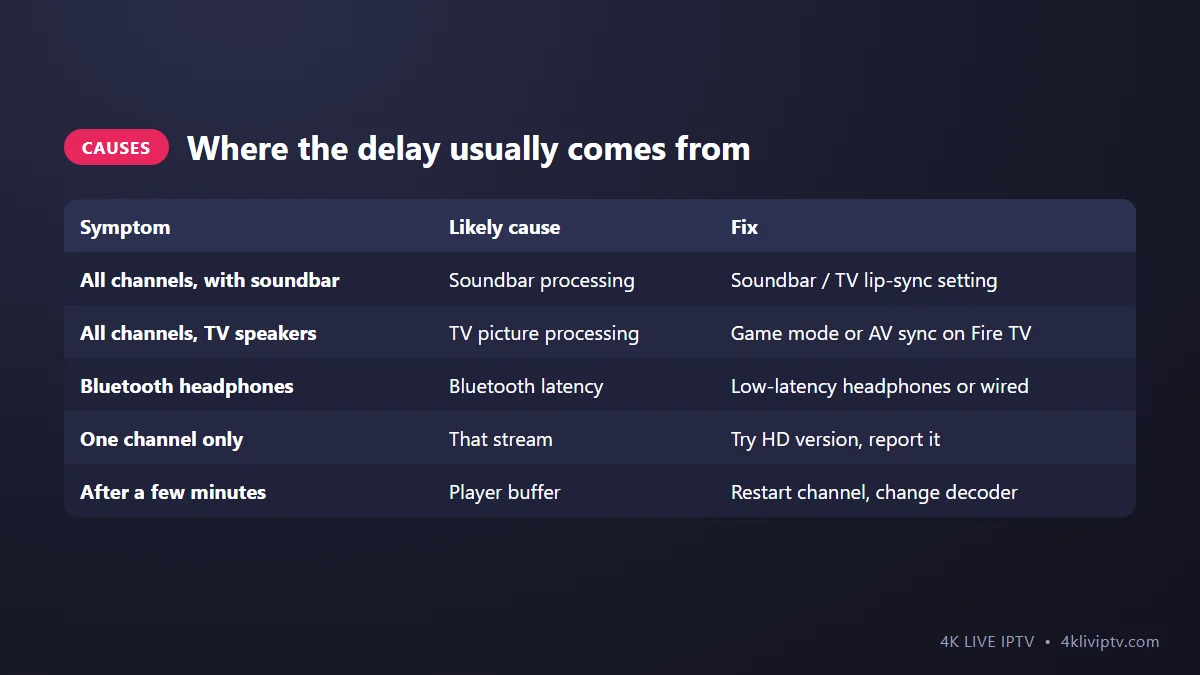
Ask yourself two questions: is it on every channel or just one? And are you using a soundbar, AV receiver or Bluetooth headphones? The answers point straight to the fix.
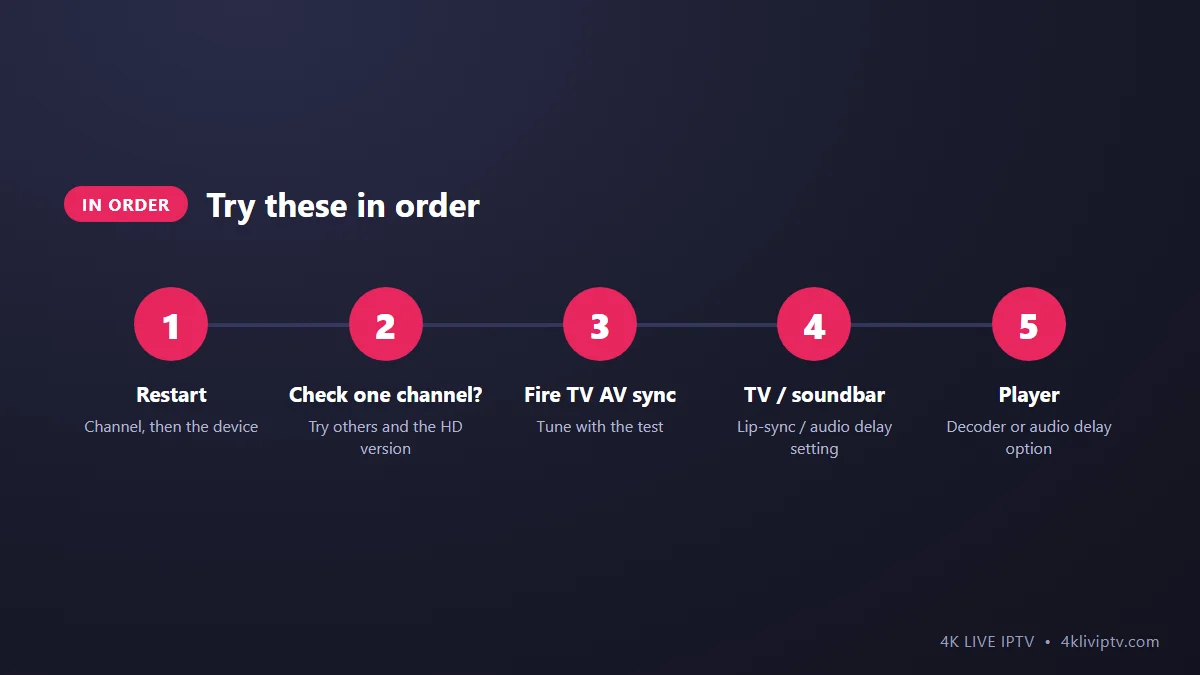
Fix 1: Restart the Channel and the Device
Sometimes the player drifts out of sync after long viewing. Change channel and come back, or restart the app. If it keeps happening, restart the device (on Fire TV: Settings › My Fire TV › Restart).
Fix 2: Only One Channel? It’s That Stream
If every other channel is fine, the delay is in that particular stream. Try its HD or FHD version, and let our team know the channel name on WhatsApp so we can check it.
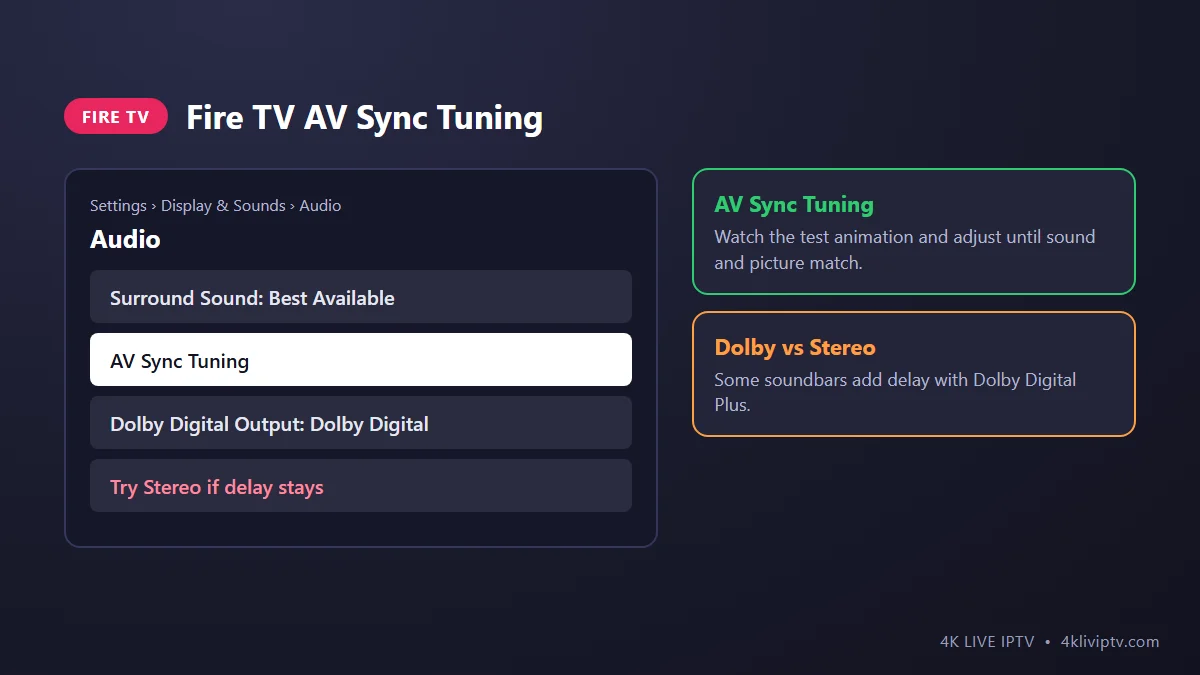
Fix 3: Fire TV AV Sync Tuning
Fire TV has a built-in tool for exactly this problem.
- Go to Settings › Display & Sounds › Audio.
- Open AV Sync Tuning.
- Watch the test animation and adjust the slider until the sound matches the picture.
In the same menu, if you use a soundbar, try switching Dolby Digital Output from Dolby Digital Plus to Dolby Digital, or Surround Sound to Stereo. Some soundbars add delay when decoding certain formats.
Fix 4: TV and Soundbar Settings
- TV lip-sync / audio delay: many TVs have an “Audio delay”, “Lip sync” or “AV sync” option in the sound settings. Adjust it while watching a news channel.
- Soundbar: most soundbars have their own AV sync or lip-sync setting in the remote or app.
- Heavy picture processing: some TV modes delay the picture. If audio arrives before the lips move, try a less processed picture mode. Our TV picture settings guide helps.
- eARC/ARC: if your soundbar is connected through HDMI ARC, make sure the TV’s digital audio output is set to “Auto” or “Pass-through” as your soundbar recommends.
Fix 5: Bluetooth Headphones
Bluetooth adds delay by nature. Newer headphones with low-latency codecs are better, but older ones can lag noticeably. Fire TV’s AV Sync Tuning can compensate. Otherwise, use wired headphones or the TV’s headphone output.
Fix 6: Player Settings
- Switch the decoder (hardware vs software) in your player settings, as shown in our troubleshooting guide.
- VLC on a computer: press J or K to shift the audio by small steps.
- Try another player with the same login. See our player comparison.
Frequently Asked Questions
Why does the audio go out of sync after a while?
Usually because of the player’s buffer or a busy connection. Restarting the channel resets it. If it happens often, check our buffering guide.
Is it my TV or the stream?
If it happens on every channel and in other apps too, it’s your setup. If only one channel, it’s the stream.
Does 4K make sync issues worse?
4K streams need more processing, which can increase delay on slower devices. Try the FHD version to compare.
Final Word
Check whether it’s one channel or all, use Fire TV’s AV Sync Tuning, adjust your TV or soundbar lip-sync, and try Stereo if Dolby adds delay. Most audio sync problems are gone within five minutes. Still off? Tell our team on WhatsApp which device and sound system you use.
Need help with your IPTV?
Our team is available 24/7 to help you install and use your subscription on any device.
CONTACT US ON WHATSAPP