

You sit down to watch the game, open the app and… nothing. A login error, an empty channel list, or a black screen with sound coming from somewhere. Annoying, but here’s the good part: when 4K Live IPTV stops working on a Firestick, the cause is almost always one of a handful of small things, and most of them take less than five minutes to fix.
This guide is organized by symptom. Find what you see on your screen, jump to that section, and work through the fixes in order. If your problem is freezing or loading circles while a channel plays, that is a different issue, and our guide on how to fix IPTV buffering covers it in detail.
Start Here: The 2-Minute Test
Before you change any settings, find out where the problem is. It saves a lot of time.
- Install a 4K Live IPTV player on your phone (IPTV Smarters Pro works on both iPhone and Android).
- Log in with the same details you use on the Firestick, on the same Wi-Fi.
- Open a channel.
If it works on the phone, your account and your internet are fine. The problem is the Firestick or the app on it, so go to the Firestick fixes below.
If it does not work on the phone either, switch the phone to mobile data or a hotspot and try again. If it works now, your home network or router is the problem. If it still fails, the issue is with your login or your subscription.

What the Error Message Is Telling You
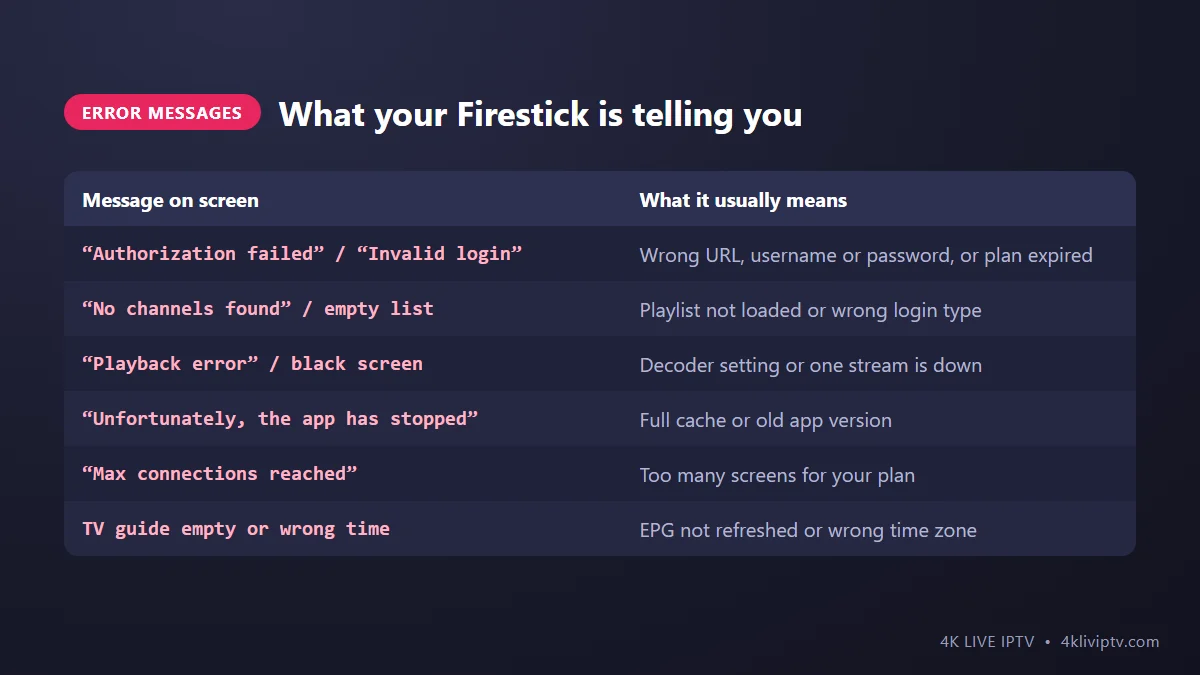
Error messages look scary, but they usually point straight at the cause. Here are the ones we see most often from customers:
| Message on screen | What it usually means | Go to |
|---|---|---|
| “Authorization failed” or “Invalid login” | Wrong server URL, username or password, or the plan has expired | Problem 1 |
| “No channels found” or an empty list | The playlist did not load, or the wrong login type was used | Problem 2 |
| “Playback error” or a black screen | Decoder setting, or one stream is down | Problem 3 |
| “Unfortunately, the app has stopped” | Full cache, low storage or an old app version | Problem 4 |
| “Max connections reached” | More screens are watching than your plan allows | Problem 5 |
| TV guide empty or showing the wrong time | EPG not refreshed, or wrong time zone | Problem 6 |
Problem 1: Login Error or “Authorization Failed”
This is the number one reason people message us, and nine times out of ten it is a typing mistake. Typing a long URL with a Firestick remote is not fun, so it is easy to miss one character.
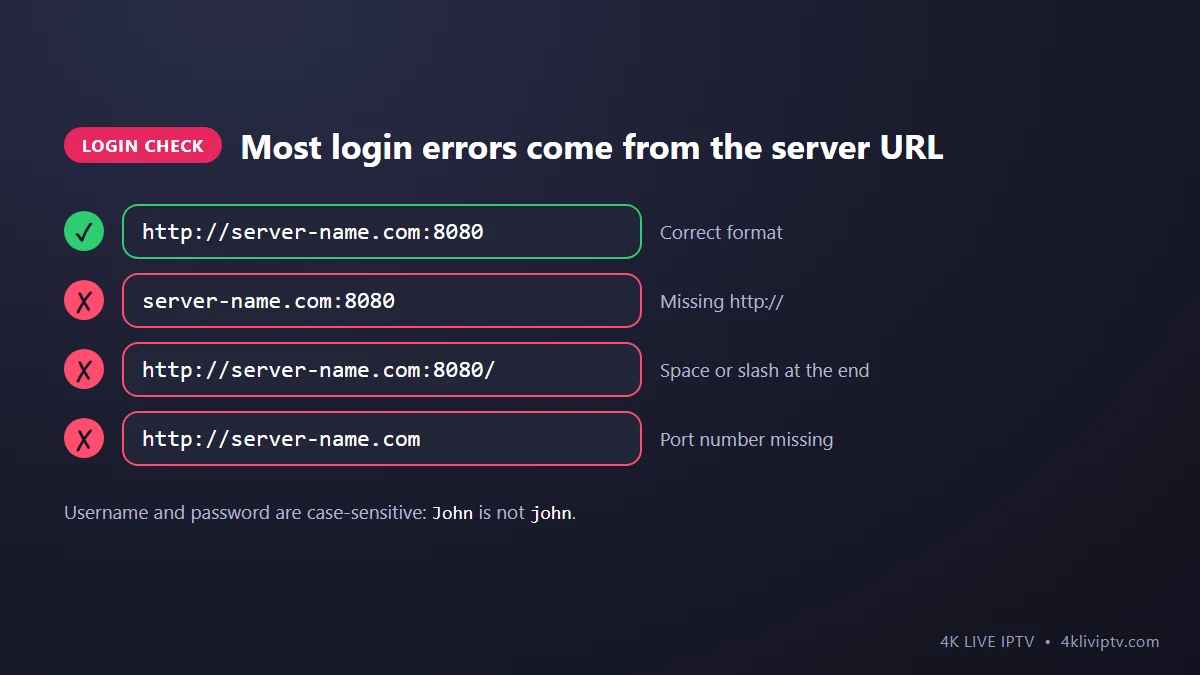
- Check the server URL format. It should start with
http://and, if your login includes a port, end with it, for examplehttp://server-name.com:8080. No space and no slash at the end. - Check capital letters. Usernames and passwords are case-sensitive. “John” and “john” are two different accounts for the server.
- Watch out for look-alike characters. The letter O and the number 0, or a lowercase l and the number 1, are the classic traps.
- Check that your plan is active. If your subscription ended yesterday, the login stops working today. Renew on the 4K Live IPTV pricing page and the same login comes back.
Tip: instead of typing with the remote, install the free Amazon Fire TV app on your phone and use the phone keyboard. Or simply copy and paste the details we send you.
Problem 2: The App Opens but There Are No Channels
You logged in successfully, but the Live TV section is empty or shows zero channels.
- Give it a minute. The first time you log in, the app downloads thousands of channels, movies and the TV guide. On an older Firestick this can take two or three minutes. Don’t close the app halfway.
- Refresh the playlist. In IPTV Smarters, use the refresh icon on the home screen. In TiviMate, go to Settings › Playlists, select your playlist and choose Update playlist.
- Check the login type. If you entered an M3U link in the Xtream Codes screen (or the other way around), the app connects but finds nothing. Our guide on M3U vs Xtream Codes explains the difference.
- Check hidden categories. Some players let you hide categories. If you hid them by accident, unhide them in the app settings.
Problem 3: Black Screen or “Playback Error”
The channel list is there, but when you open a channel the screen stays black, or you hear sound with no picture.
- Try a few other channels first. If only one channel is black, that single stream may be down. Try its HD or FHD version, and send us the channel name on WhatsApp so we can check it.
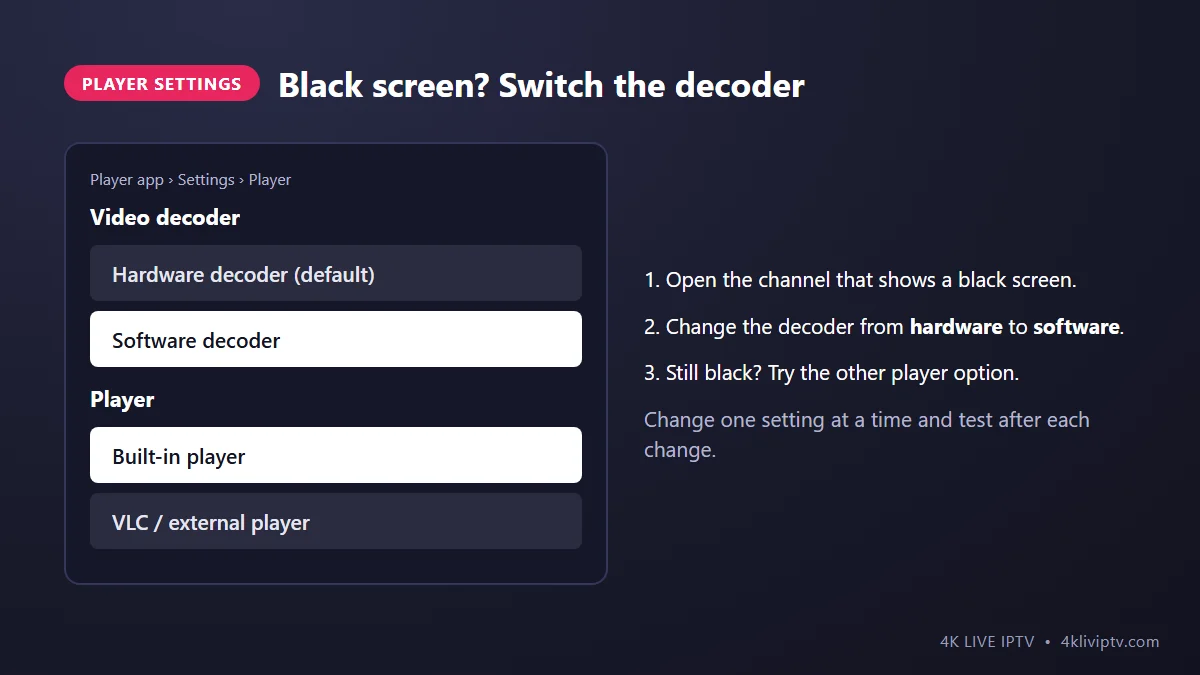
- Switch the video decoder. Every player has a setting for this. Change it from hardware to software (or back), then reopen the channel. This fixes most black screens on older Firesticks.
- Try another player option. Many apps let you choose between their built-in player and an external one like VLC. Switching often solves it right away.
- Check the 4K setup. A 4K channel on a Fire TV Stick Lite or a Full HD TV may not play at all. Use the FHD version instead.
Sound but no picture, or picture but no sound? On the Firestick, go to Settings › Display & Sounds › Audio and set Surround Sound to “Best Available” or “Stereo”. Some soundbars and older TVs don’t handle Dolby audio from live channels well.
Problem 4: The App Crashes or Won’t Open
The app closes by itself, freezes on the logo, or shows “Unfortunately, the app has stopped”.
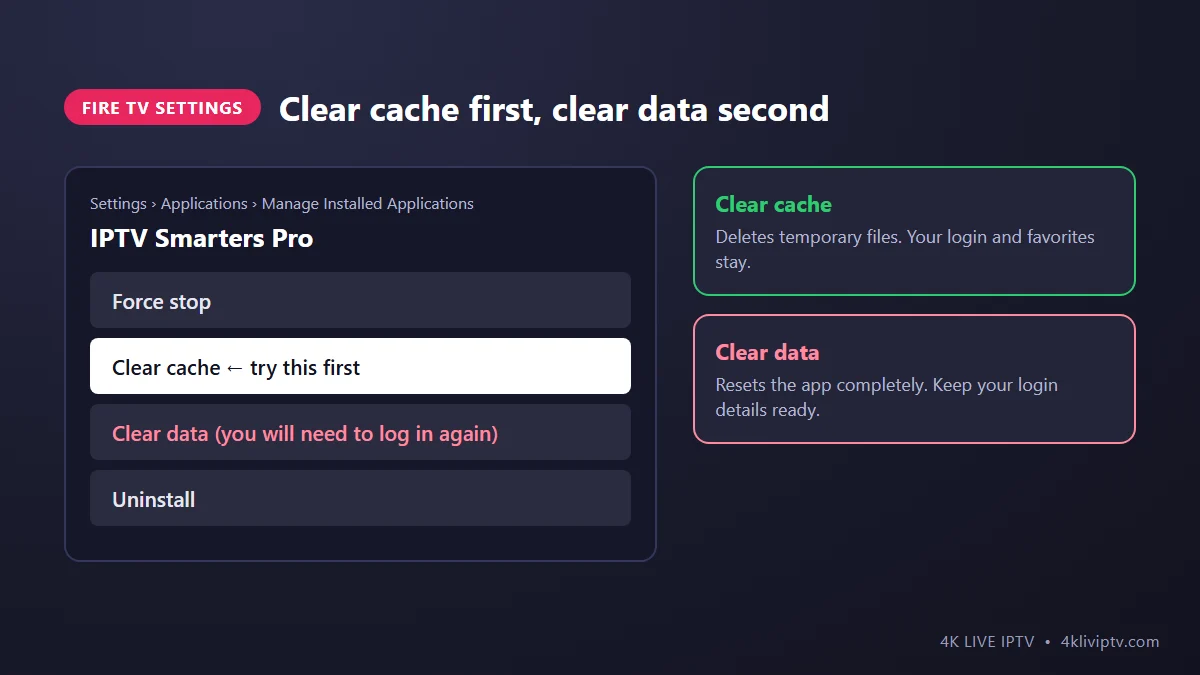
- Force stop and clear the cache. Go to Settings › Applications › Manage Installed Applications, choose your player, click Force stop, then Clear cache. Your login and favorites stay saved.
- Clear data if the cache was not enough. Same menu, Clear data. This resets the app completely, so have your 4K Live IPTV login details ready before you do it.
- Free up storage. A Firestick with less than 500 MB free becomes unstable. Delete apps you don’t use and old APK files in the Downloader app.
- Update or reinstall the player. An old version can stop working after a Fire OS update. Uninstall it and install the latest version, following the same steps as in our Firestick installation guide.
Problem 5: “Max Connections Reached”
Each 4K Live IPTV plan allows a set number of screens at the same time. A 1-device plan means one stream at a time, full stop. If your kid is watching cartoons on the tablet while you open a match on the Firestick, the second one gets blocked.
- Close the app completely on the other devices (don’t just leave it paused in the background).
- Wait two or three minutes for the server to release the connection, then try again.
- If your household regularly watches on more than one screen, a 2 or 3-device plan solves this for good.
Problem 6: The TV Guide Is Empty or Shows the Wrong Time
Channels play, but the guide says “No information”, or the shows are listed an hour or more off.
- Refresh the EPG in the player settings. The guide does not always update on its own.
- Set the correct time zone in the app (for example Eastern or Pacific). The Firestick time comes from your Amazon account settings, so check that too.
- Our full guide on using the EPG and catch-up TV walks through both apps step by step.
Problem 7: The App Disappeared or Won’t Install After a Firestick Update
Amazon updates Fire OS regularly, and sometimes an update switches off the “Install unknown apps” option for the Downloader app. If you try to install or update your player and nothing happens:
- Go to Settings › My Fire TV › Developer Options › Install unknown apps and turn it back on for Downloader.
- If Developer Options is missing, go to Settings › My Fire TV › About and click your device name seven times.
A note about newer Fire TV models: some recent Fire TV devices, such as the Fire TV Stick 4K Select, run Amazon’s new Vega OS instead of Android-based Fire OS. These devices only install apps from the Amazon Appstore, so many 4K Live IPTV player apps cannot be installed on them. If you are buying a new stick for IPTV, the Fire TV Stick 4K Max is still the safest choice. Not sure what you have? Check Settings › My Fire TV › About.
Problem 8: Everything Worked Yesterday, Nothing Works Today
Nothing changed on your side, but no channel loads at all.
- Restart everything. Unplug the Firestick and the router for 30 seconds. It sounds too simple, but it solves a surprising number of “it just stopped” cases.
- Check your subscription date. An expired plan is the most common reason for a sudden stop.
- Do the 2-minute test from the top of this page to see if the problem is the device, the network or the account.
- Contact support. If nothing works on any device or network, message the 4K Live IPTV team. We can see quickly whether there is an issue on our side.
How to Keep Your Firestick Trouble-Free
- Restart the Firestick once a week (Settings › My Fire TV › Restart).
- Clear the player’s cache every few weeks.
- Keep at least 1 GB of free storage.
- Use the power adapter that came with the stick, not a USB port on the TV. A weak power supply causes random crashes.
- If the stick gets hot behind the TV, use the HDMI extender from the box so it gets some air.
Frequently Asked Questions
Why does 4K Live IPTV work on my phone but not on my Firestick?
Your account and internet are fine in that case. The problem is the Firestick or the app on it: a full cache, an old app version, a decoder setting or weak Wi-Fi where the TV is. Start with Problem 4, then Problem 3.
Should I clear cache or clear data?
Always clear the cache first. It removes temporary files and keeps your login. Clear data only if clearing the cache did not help, because it resets the app and you will need to log in again.
Does a factory reset fix IPTV problems on Firestick?
Sometimes, but it is the last resort. It deletes all your apps and settings. Try every fix on this page first.
Can the Firestick block IPTV apps?
Classic Fire OS models let you install player apps through Downloader as long as “Install unknown apps” is turned on. Newer Vega OS models only allow apps from the Amazon Appstore, which is why many players are not available on them.
New to all this?
If you are just getting started and want to understand the basics first, read What Is 4K Live IPTV? A Beginner’s Guide.
Still Not Working?
Most Firestick problems are solved with the fixes above, usually in the first two or three steps. If you have tried everything and 4K Live IPTV still won’t work, send us a message on WhatsApp with three things: your Firestick model, the player app you use and a photo of the error. With that, our support team can usually point to the fix in a few minutes, any time of day.
Need help with your IPTV?
Our team is available 24/7 to help you install and use your subscription on any device.
CONTACT US ON WHATSAPP