
MAG boxes have been around for years, and many people love them for one reason: they are simple. There are no apps to install and no usernames to type. You turn the box on, and it opens straight into your channels like a cable receiver. Setting up 4K Live IPTV on a MAG box works a little differently from a Firestick, though. Instead of a login, it uses your box’s MAC address and a portal URL. Here is the whole process.
How MAG Boxes Connect to 4K Live IPTV
Every MAG box has a unique MAC address, a kind of ID number. When you order, you give us that MAC address, and we activate it on our system. You then type our portal address into the box. When the box connects, the portal recognizes the MAC and loads your channels, movies and TV guide. No password needed, because the box itself is the key.
This means two things: the setup is quick, and your subscription is tied to that specific box. If you replace the box, the new MAC address needs to be activated.
Step 1: Find Your MAC Address
There are two easy ways:
- The sticker: turn the box over. The MAC address is printed on the label and starts with 00:1A:79.
- On screen: go to Settings › Device info (or System information on some models).
Write it down exactly, or take a clear photo of the sticker. It’s easy to confuse a B and an 8 in small print.
Step 2: Send Your MAC Address When You Order
Choose your plan on the 4K Live IPTV pricing page and mention that you use a MAG box, then send your MAC address to our team on WhatsApp. We activate it and send you back the portal URL.
Step 3: Enter the Portal URL
- Turn on the MAG box. If it is already showing a portal, press the Setup or Settings button on the remote.
- Go to System settings › Servers › Portals.
- In Portal 1 name, type anything you like, for example “4K Live IPTV”.
- In Portal 1 URL, type the portal address exactly as you received it, including
http://and anything at the end like/c/. - Press OK to save.

Step 4: Restart the Box
Go back to the main settings screen and choose Restart portal, or simply unplug the box for ten seconds and plug it back in. On startup, the box connects to the portal and loads 4K Live IPTV. The first load can take a minute.
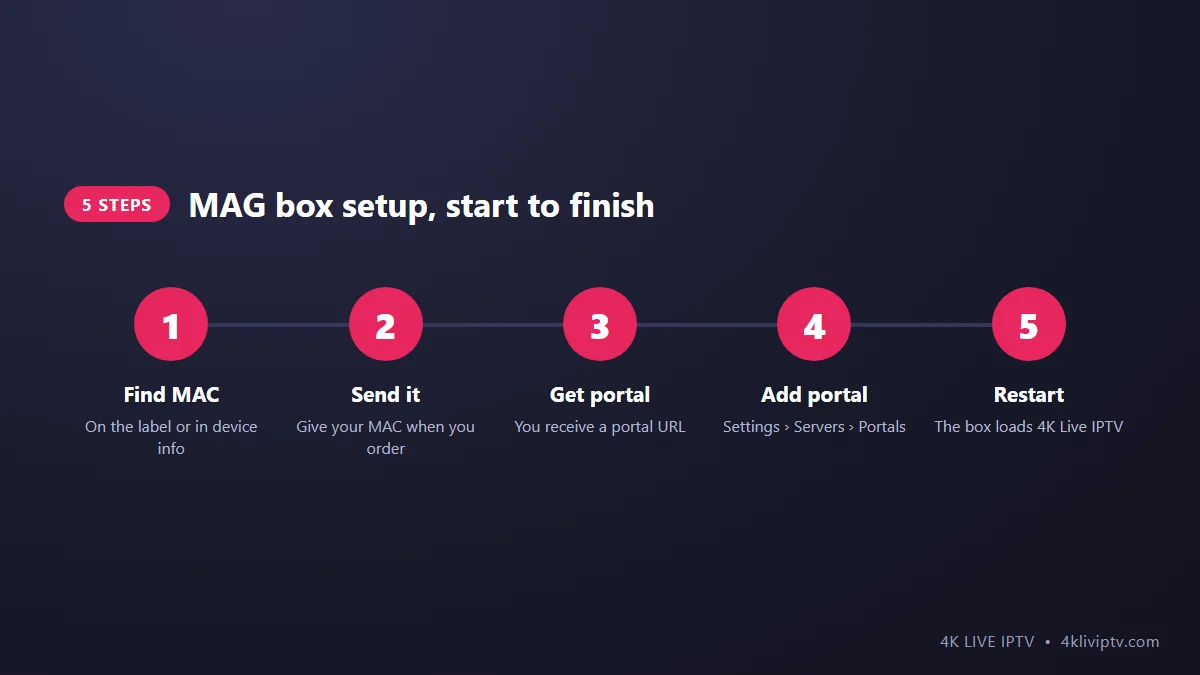
Step 5: Start Watching
You will see the portal home screen with sections like TV, Video Club (movies) and Series. Choose TV, pick a category and start watching. Use the EPG or Info button on the remote to see what’s on now and next.
Tips for MAG Box Users
- Use the Ethernet port. All MAG boxes have one, and it is far more stable than Wi-Fi for 4K channels.
- Keep the firmware up to date from Settings › Software update. Old firmware can cause portal loading problems.
- Use favorites: press the favorites button (usually marked “FAV” or a star) on a channel to add it to your list.
- Set your time zone in System settings › Time settings, so the TV guide shows US times correctly.
- Don’t share the portal URL. It only works with your activated MAC address anyway.
Common MAG Box Problems and Fixes
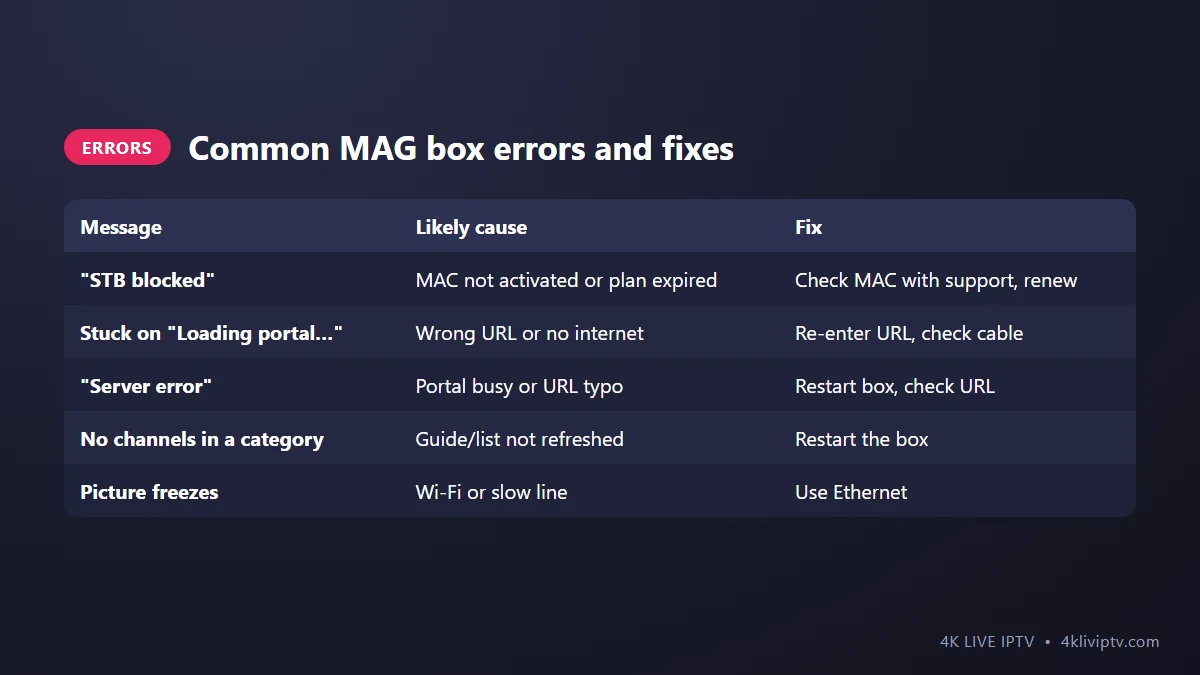
“STB blocked” or “Your STB is blocked”
The portal does not recognize your MAC address. Either it was not activated yet, it was typed wrong when you ordered, or the subscription has expired. Send us a photo of the label under the box so we can compare.
Stuck on “Loading portal…”
Usually a typo in the portal URL or no internet connection. Check the cable, go back to the Portals menu and re-enter the URL carefully.
Channels freeze
Switch to Ethernet if you are on Wi-Fi, and see our guide on fixing buffering. For 4K channels, check that you have at least 25 Mbps (speed guide).
Frequently Asked Questions
Which MAG box models work with 4K Live IPTV?
Current models like the MAG 520, 524, 540 and 544 work well, and the 4K-capable models can play 4K channels. Older models like the MAG 254 or 322 still work for HD.
Can I use my MAG subscription on another device?
A MAG portal subscription is tied to the box’s MAC address. If you also want to watch on a phone or Firestick, ask us about a plan with more connections and Xtream Codes details.
Is a MAG box better than a Firestick?
MAG boxes are simpler and more “plug and play”. A Firestick gives you more app choices and features like recording in TiviMate. See our comparison of the best devices for 4K Live IPTV.
Can I add a second portal?
Yes, the Portals menu has room for several. The box loads Portal 1 by default.
Final Word
Find your MAC address, send it to us, enter the portal URL and restart. That’s really all a MAG box needs to run 4K Live IPTV like a classic cable receiver. If the box shows any error message, take a photo of it and send it to our team on WhatsApp. We will tell you exactly what’s wrong.
Need help with your IPTV?
Our team is available 24/7 to help you install and use your subscription on any device.
CONTACT US ON WHATSAPP