

When you subscribe to 4K Live IPTV, you receive your login details in two formats: an M3U link and Xtream Codes details. Both give you exactly the same channels, movies and series. The difference is how your app reads them, and that changes your daily experience. In this guide we explain what each one is, the pros and cons, and which one you should use on your device.
What Is an M3U Link?
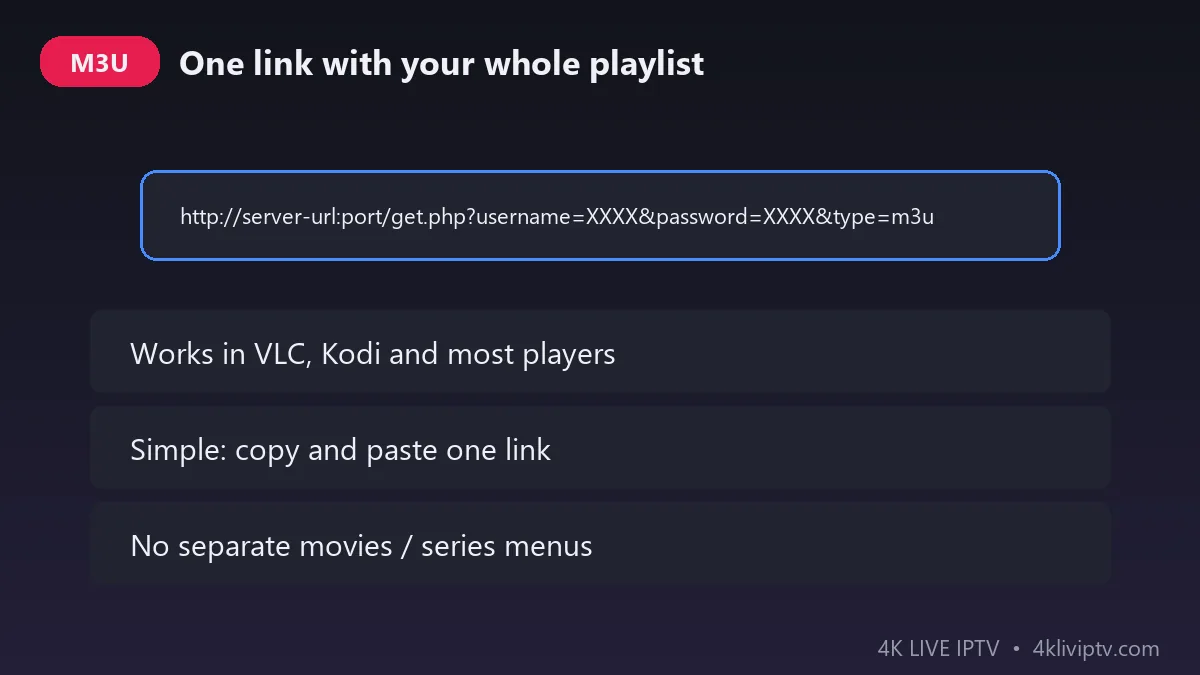
An M3U link is a single web address that contains your whole playlist: every channel, with its name, logo and stream address. When you paste this link into a player, the app downloads the list and shows all your channels.
A typical M3U link looks like this:
http://server-url:port/get.php?username=XXXX&password=XXXX&type=m3u_plus
M3U is the oldest and most universal format. It works in almost every IPTV player, including VLC and Kodi on a computer.
What Is Xtream Codes?
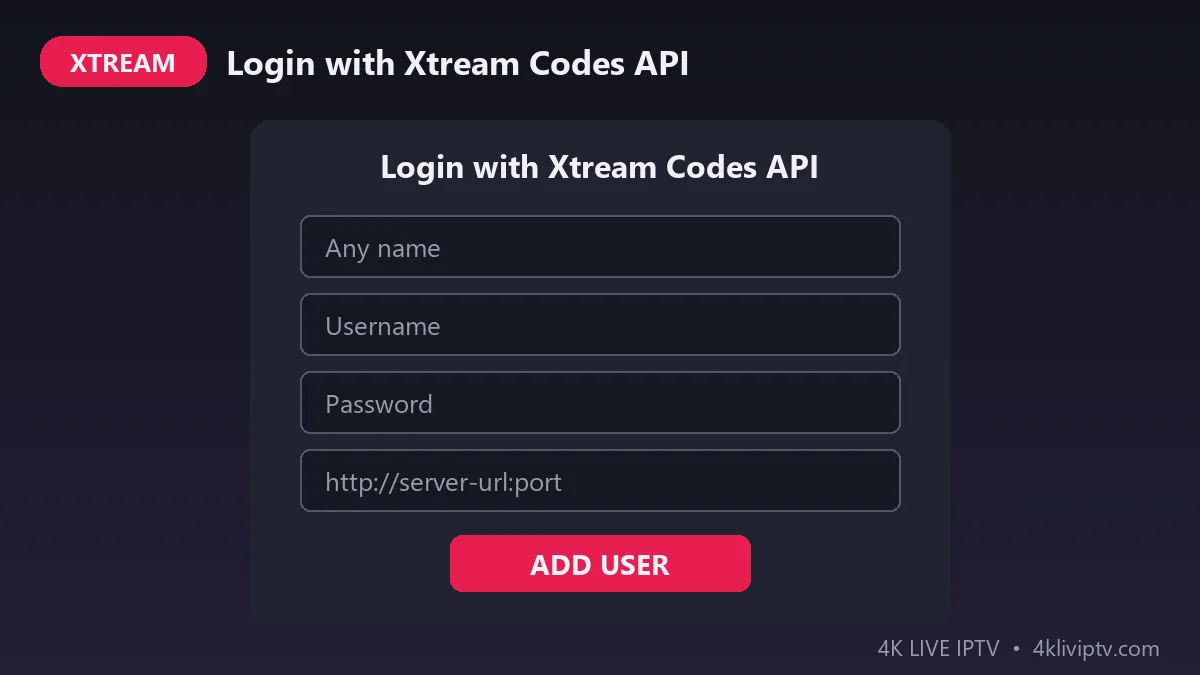
Xtream Codes (often called Xtream Codes API) uses three separate fields instead of one long link:
- Username
- Password
- Server URL (for example
http://server-url:port)
With these details, the app talks directly to the 4K Live IPTV server. It doesn’t just download a list: it receives live TV, movies and series in separate sections, loads the TV guide automatically and gets updates faster.
M3U vs Xtream Codes: The Main Differences
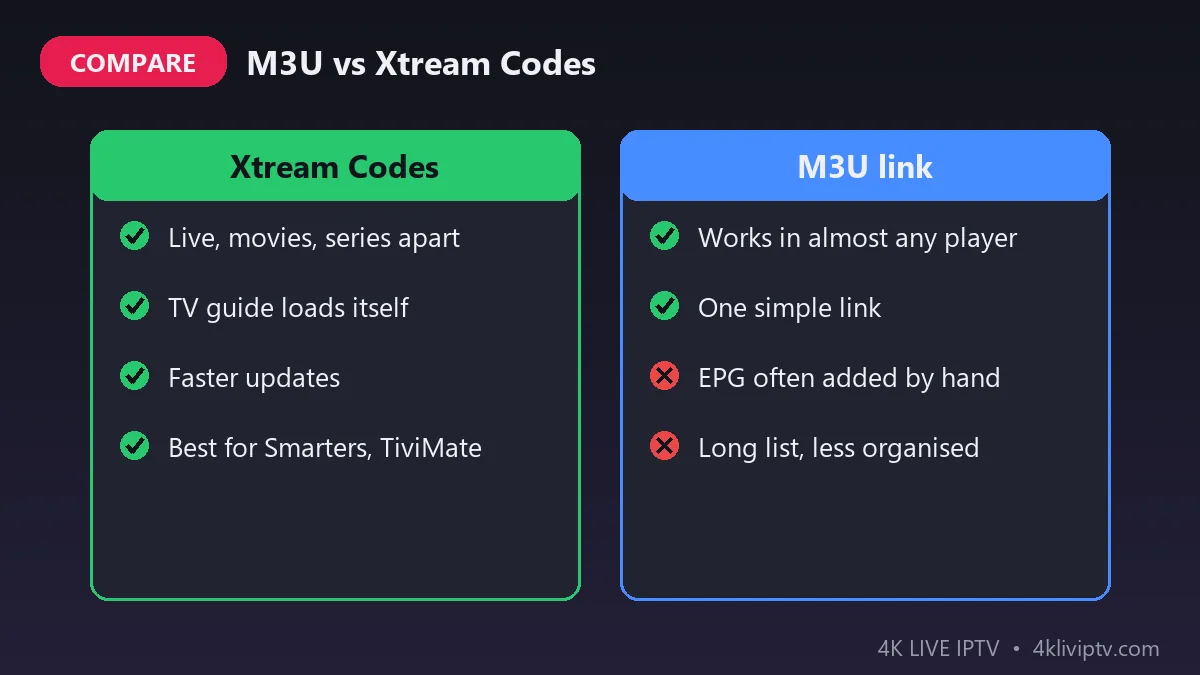
| Feature | Xtream Codes | M3U link |
|---|---|---|
| Live TV, movies and series in separate menus | Yes | Usually no |
| TV guide (EPG) loads automatically | Yes | Often needs a separate EPG link |
| Catch-up TV | Yes, on supported channels | Limited |
| Works in VLC and Kodi | Kodi with an add-on | Yes |
| Easy to type with a TV remote | Three short fields | One very long link |
| Playlist updates | Automatic | Must reload the list |
Which One Should You Use?
For most 4K Live IPTV customers, the answer is simple: use Xtream Codes whenever your app supports it. You get a cleaner interface, a working TV guide, catch-up and faster loading.
Choose the M3U link only in these cases:
- Your player doesn’t have an Xtream Codes option.
- You want to watch on a computer with VLC.
- You use an app that only accepts a playlist URL, such as some MAC-address players where we upload the list for you.
Which Apps Support Each Format?
- IPTV Smarters Pro: Xtream Codes (recommended) and M3U.
- TiviMate: Xtream Codes and M3U. Xtream gives the best TV guide.
- IBO Player, Smart IPTV, Set IPTV: activated with your MAC address; we load the playlist for you. Read our guide to the best IPTV apps for Samsung and LG Smart TV.
- VLC (computer): M3U only.
- Kodi: M3U with the PVR IPTV Simple Client add-on.
How to Log In with Xtream Codes
- Open your IPTV player, for example IPTV Smarters Pro.
- Choose Login with Xtream Codes API.
- Enter any name you like (for example “4K Live IPTV”).
- Type the username, password and server URL from your welcome message.
- Click Add User and wait for the channels to load.
On Firestick, follow our full guide on how to install IPTV on Firestick.
How to Add an M3U Link
- Open your player and choose Add playlist or Load your playlist or file/URL.
- Paste the full M3U link exactly as you received it.
- Give the playlist a name and save.
- If the TV guide is empty, add the EPG link we sent you in the settings.
Common Login Problems
“Invalid username or password”: details are case-sensitive. Check for capital letters and extra spaces, especially if you copied them from a message.
The server URL doesn’t work: make sure you include http:// and the port number if one was given.
The TV guide is empty: with Xtream Codes, refresh the EPG in the settings. Learn more in our guide on how to use EPG and Catch-Up TV.
M3U vs M3U Plus: What Is the Difference?
You may see two versions of the M3U link: type=m3u and type=m3u_plus. Both contain the same channels. The M3U Plus version adds extra information, such as channel logos, group names (sports, movies, news) and EPG IDs. If your player accepts it, always choose M3U Plus for a cleaner and better organised channel list with 4K Live IPTV.
Can You Switch from M3U to Xtream Codes?
Yes, and it is easy. Your M3U link already contains your Xtream Codes details. Look at the link:
- The part before
/get.phpis your server URL. - The value after
username=is your username. - The value after
password=is your password.
Enter these three values in the Xtream Codes login of your app, and you will get separate menus and the full TV guide straight away.
Keep Your Login Details Safe
- Never post your M3U link or Xtream Codes details in public groups or forums.
- Don’t share your login with people outside your home. Extra devices use connections from your plan.
- If you think someone else is using your account, contact the 4K Live IPTV team and we will reset your details.
Watching 4K Live IPTV on a Computer with VLC
On a Windows or Mac computer, the M3U link is the simplest option. Open VLC Media Player, click Media › Open Network Stream (on Mac: File › Open Network), paste your full M3U link and click Play. Then open the playlist view to see all your channels. VLC doesn’t show a TV guide or separate movie menus, so for a full experience on a computer you can also use a desktop version of IPTV Smarters with your Xtream Codes details.
Frequently Asked Questions
Do M3U and Xtream Codes give different channels?
No. With 4K Live IPTV, both formats give you exactly the same channels, movies and series.
Can I use both at the same time?
Yes, but each device you watch on uses one connection from your plan. Check your plan on our pricing page.
Is Xtream Codes safe?
Yes. It is simply a login method. Keep your details private and don’t share them with others.
Conclusion
Both formats work with 4K Live IPTV, but Xtream Codes gives the best experience: organised menus, an automatic TV guide and faster updates. Use M3U only when your app doesn’t support Xtream Codes. You will receive both after ordering, and if you are not sure which one to use, just ask the 4K Live IPTV team on WhatsApp.
Need help with your IPTV?
Our team is available 24/7 to help you install and use your subscription on any device.
CONTACT US ON WHATSAPP