

Hisense makes a lot of great-value TVs in the US, and many of them run VIDAA, Hisense’s own smart TV system. VIDAA is fast and simple, but it is not Android, so the usual players like TiviMate and IPTV Smarters Pro aren’t available. You can still watch 4K Live IPTV on it, though. Here are the two ways, and how to choose.
First: Is Your Hisense TV Running VIDAA?
Hisense sells TVs with different systems: VIDAA, Google TV, Roku TV and Fire TV. Look at the home screen or the box. If it says Google TV, follow our Google TV guide. If it is a Roku TV, see the Roku guide. If it is VIDAA, keep reading.
Method 1: Install an IPTV App From the VIDAA Store
The VIDAA app store includes a few MAC-based IPTV players, such as IBO Player and similar apps. Availability depends on your TV model, its software version and region, so check what is listed on your TV. These apps all work the same way: instead of typing your login on the TV, you add it on the app’s website using your TV’s MAC address.
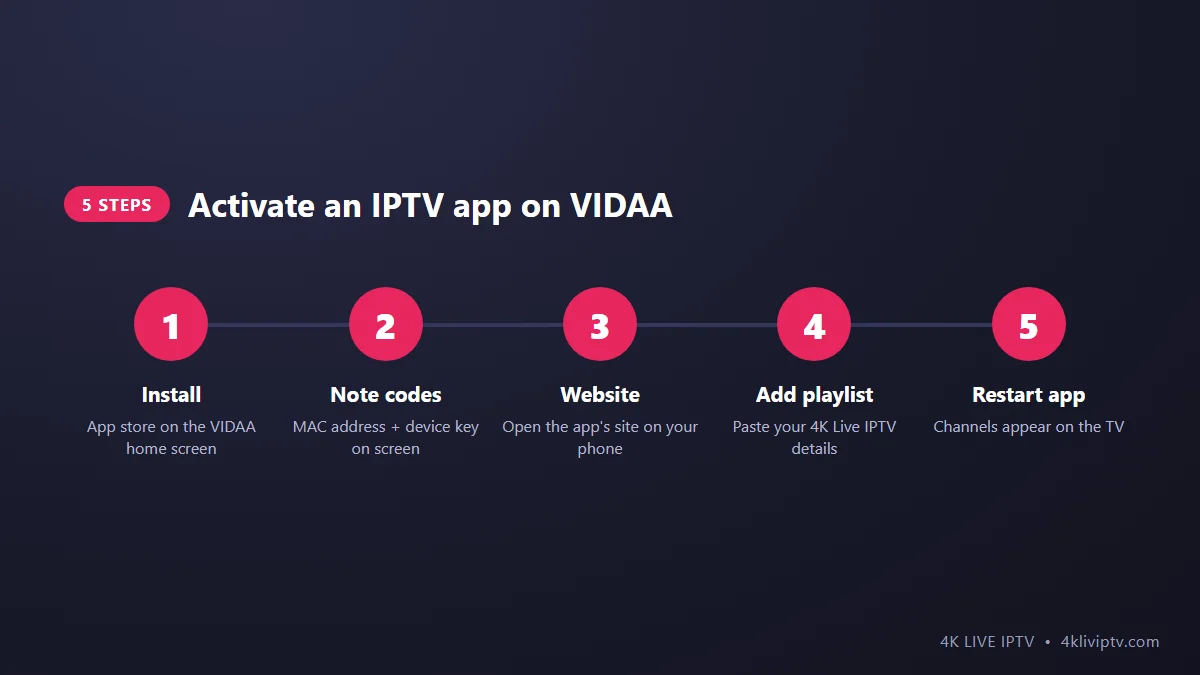
- On the VIDAA home screen, open the app store, search for the player and install it.
- Open the app. It shows a MAC address and a device key. Take a photo of the screen.
- On your phone or computer, go to the official website of that app and open the playlist upload page.
- Enter the MAC address and device key, then add your 4K Live IPTV details: either the Xtream Codes login (server URL, username, password) or your M3U link.
- Save, then close and reopen the app on the TV. Your channels load.
Most of these apps offer a free trial and then ask for a small one-time or yearly activation fee, paid to the app developer (not to us). The process is very similar to the Samsung and LG apps we describe in our guide to the best IPTV apps for Smart TVs.
Method 2: Add a Streaming Stick
If you watch a lot of live sports, or you want features like recording and a fast guide, plug a Fire TV Stick 4K Max or a Google TV box into a free HDMI port. You then have access to TiviMate, IPTV Smarters and every major player, and the stick is usually faster than the TV’s built-in processor with a big channel list. Setup takes about ten minutes with our Firestick installation guide.
Which Should You Choose?
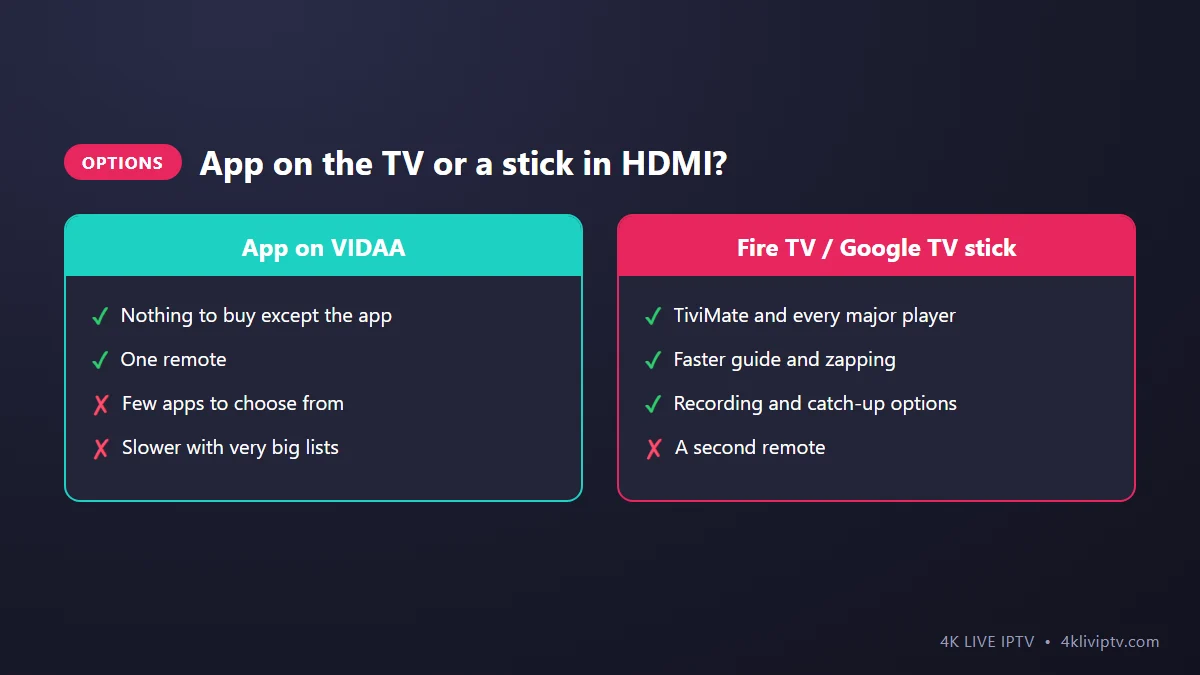
- Light use, one TV, want to keep it simple: the VIDAA app is fine.
- Daily use, sports, several people watching: go with a stick. Our device guide compares the best options.
Not sure yet? Start with the VIDAA app during your 24-hour test. If it feels slow, you’ll know a stick is worth it.
Tips for the Best Picture on a Hisense TV
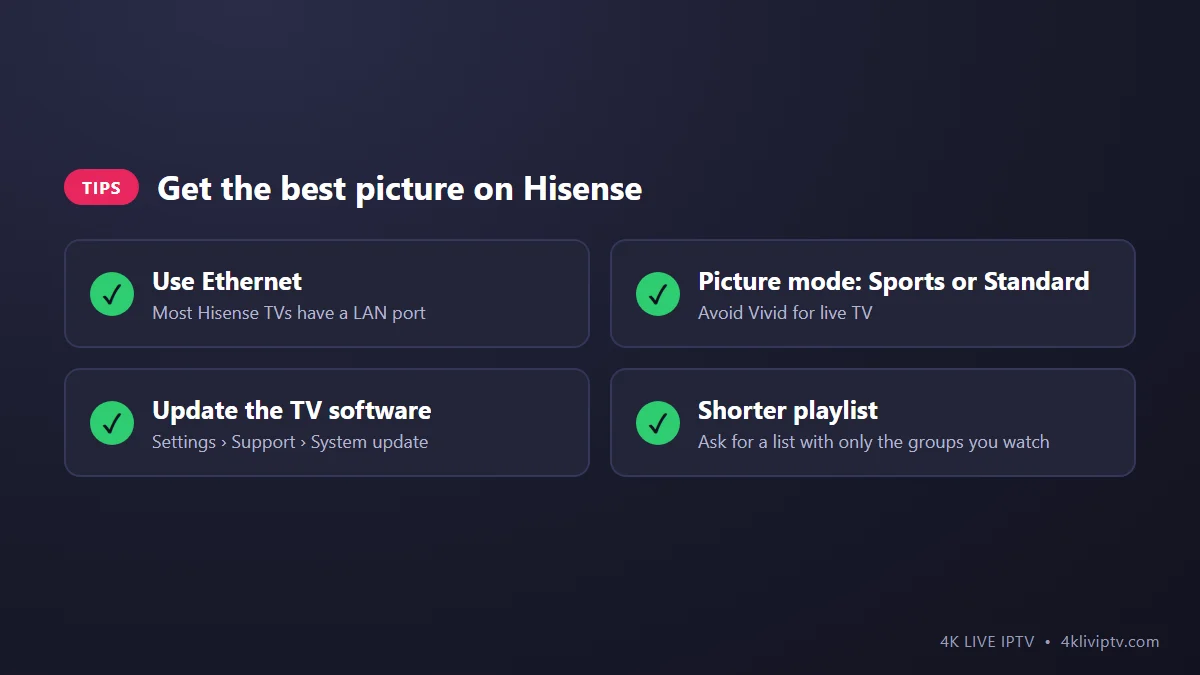
- Use the Ethernet port. Most Hisense TVs have one, and it makes 4K channels much more stable.
- Pick the right picture mode. “Vivid” is too harsh for long viewing. “Standard” works for most channels, “Sports” for games.
- Keep the TV updated: Settings › Support › System Update. App store and app compatibility improve with updates.
- Ask for a lighter playlist. TV apps load faster with fewer channels. Our team can set your account to show only the groups you watch.
Common Problems
The app says “No playlist” after uploading
Close the app completely and reopen it. Check that the MAC address on the website matches the one on the TV exactly.
The app I want isn’t in the VIDAA store
App availability varies by model. Try another MAC-based player, or use a streaming stick.
Channels freeze
Switch to Ethernet and check our buffering guide.
Frequently Asked Questions
Can I install TiviMate on a Hisense VIDAA TV?
No, TiviMate needs Android. Use a Fire TV Stick or Google TV device in a spare HDMI port.
Do I pay for the IPTV app separately?
Usually yes, after a trial. The app fee goes to the app developer. Your 4K Live IPTV subscription covers the channels.
Can I watch 4K channels with the VIDAA app?
On a 4K Hisense TV with a good connection, yes. Performance depends on the TV model and the app.
Final Word
On a Hisense VIDAA TV, you can run 4K Live IPTV with a MAC-based app from the TV’s store, or add a streaming stick for the full experience. Try the app first, and upgrade if you need more speed or features. Our team is happy to help you with either setup on WhatsApp.
Need help with your IPTV?
Our team is available 24/7 to help you install and use your subscription on any device.
CONTACT US ON WHATSAPP