

Your iPhone is probably the screen you carry everywhere, so it makes sense to have live TV on it too. Watching 4K Live IPTV on an iPhone or iPad is easy once you pick the right app, and the login is the same one you use on your TV. This guide covers the best apps, the setup, how much data live TV uses on cellular, and how to throw the picture onto a big screen with AirPlay.
Which App Should You Use on iPhone and iPad?
Apple does not allow some of the Android players (like TiviMate) on the App Store, but there are solid options. These are the three we see our customers use most:
- Smarters Player Lite: the Apple version of IPTV Smarters. Free, simple, and it works exactly like the Android and PC versions, so it is the easiest place to start.
- IPTVX: a paid app with a very clean, modern design and a great TV guide. It really shines on an iPad and also runs on Apple TV and Mac.
- GSE Smart IPTV: lots of settings and options, with an older look. Good if you like to tweak things.
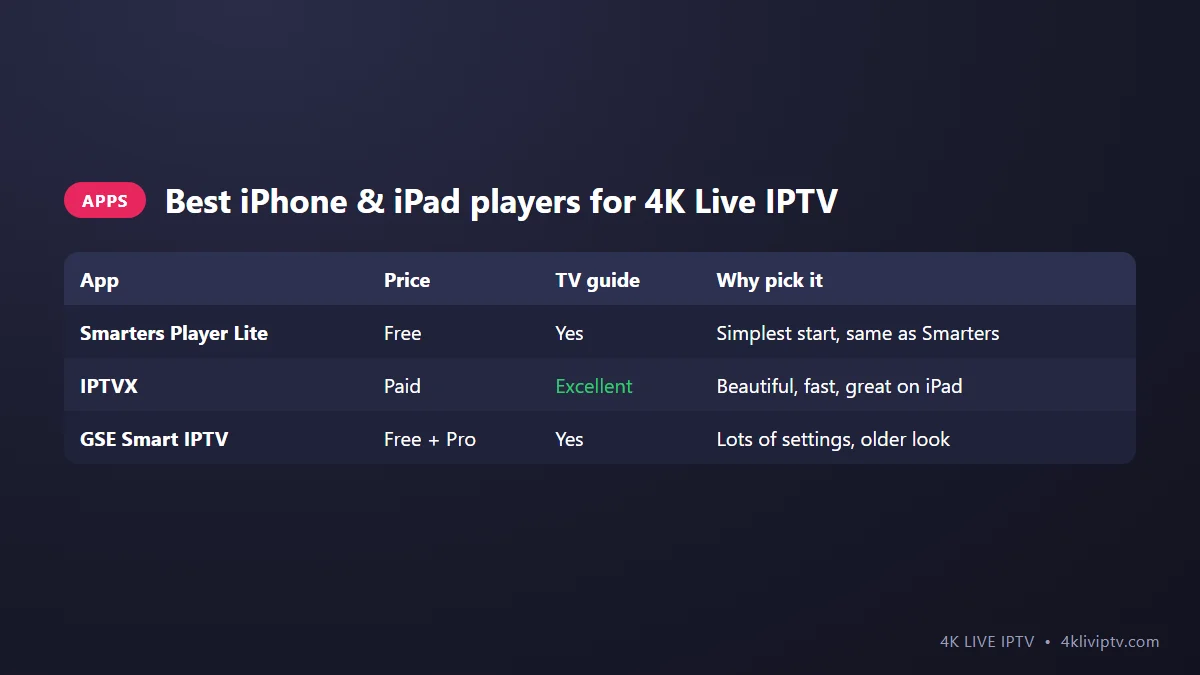
All three accept the Xtream Codes login that comes with your 4K Live IPTV subscription. None of them include channels by themselves; they only play what your subscription provides.
How to Set Up 4K Live IPTV on iPhone (Smarters Player Lite)
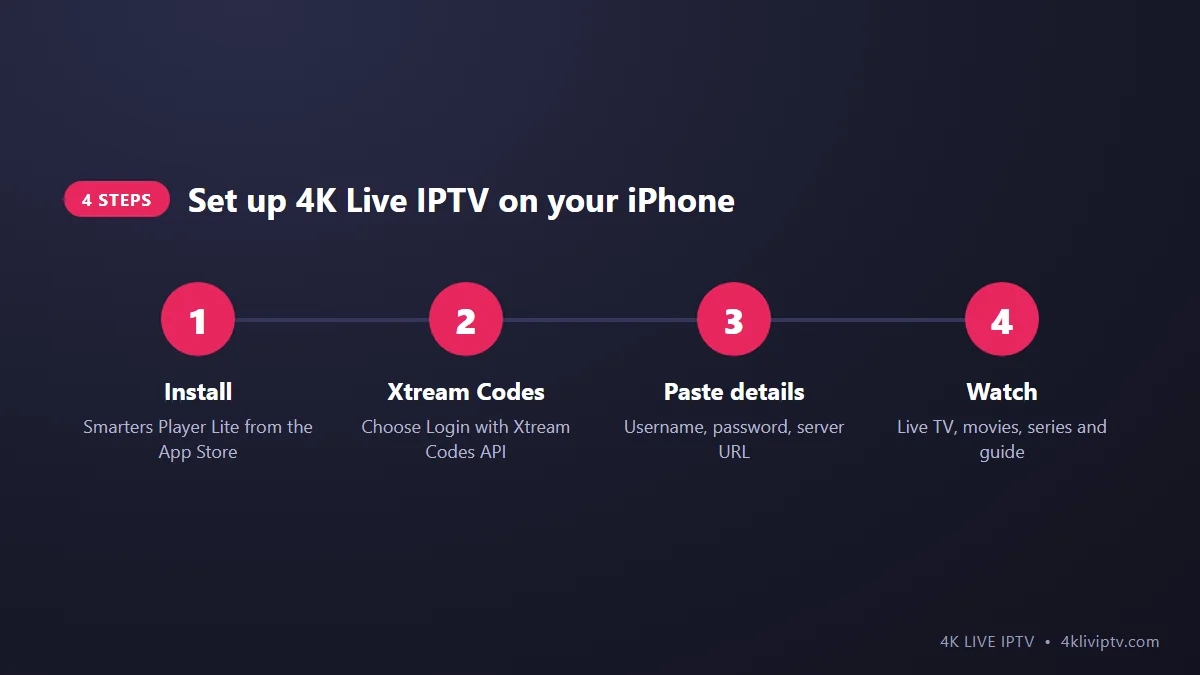
- Install Smarters Player Lite from the App Store and open it.
- Accept the terms and choose Login with Xtream Codes API.
- Paste your details: any name (for example “4K Live IPTV”), your username, your password and the server URL starting with
http://. Long-press each field and choose Paste. It avoids typing errors. - Tap Add User, wait a minute for channels and the guide to load, then open Live TV.
The steps on iPad are identical. For a more detailed walkthrough of the app and its settings, see our IPTV Smarters Pro setup guide. The menus are the same.
How Much Mobile Data Does Live TV Use?
This is where people get surprised. Streaming live TV over cellular can use a lot of data, and the quality you pick makes a huge difference. These are approximate numbers per hour:
- SD: about 1.3 GB
- HD (720p): about 2.3 GB
- Full HD (1080p): about 3.6 GB
- 4K: about 11 GB
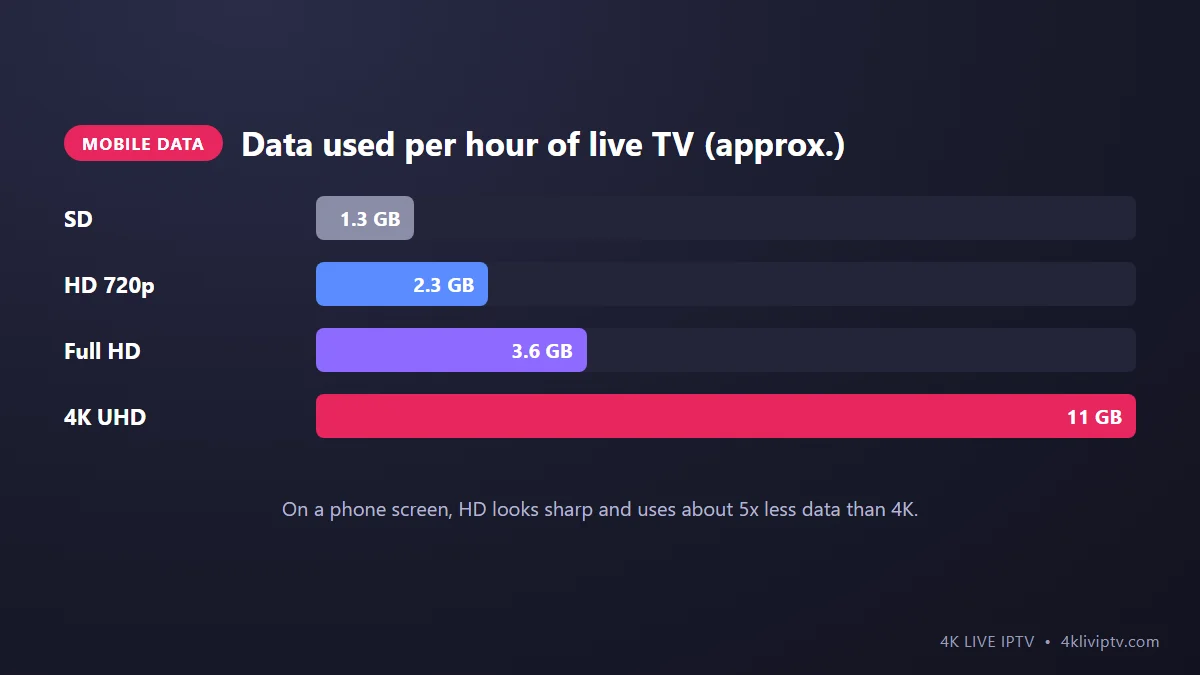
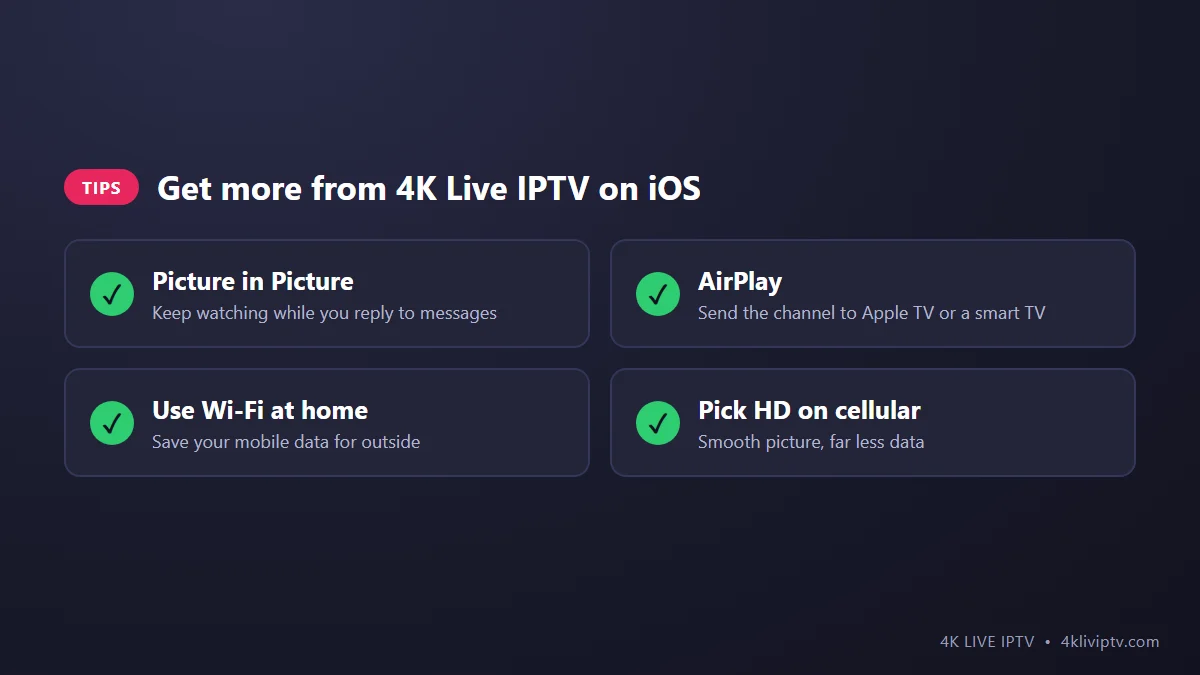
On a 6-inch phone screen, an HD channel already looks sharp. Our advice: pick the HD version of a channel when you are on cellular and keep the 4K versions for your TV at home. If your plan is not unlimited, a two-hour game in 4K could eat a big part of your monthly data.
Picture in Picture: Watch While You Use Other Apps
On iPhone and iPad, many players support Picture in Picture. Start a channel in full screen, then swipe up to go home. The video shrinks into a small window you can move around the screen while you reply to a message or check something. If it doesn’t work, check that Picture in Picture is on in Settings › General › Picture in Picture.
Send 4K Live IPTV to Your TV With AirPlay
Have an Apple TV, or a smart TV with AirPlay (many Samsung, LG, Sony, Vizio and Roku models have it)? You can watch on the big screen:
- Connect the iPhone and the TV to the same Wi-Fi.
- Start the channel in your player app.
- Tap the AirPlay icon in the player if there is one, or open Control Center and tap Screen Mirroring.
- Choose your TV.
AirPlay is handy for a quick show, but for regular TV watching an app running directly on the TV is smoother. If you have an Apple TV 4K, install the app there instead (see our Apple TV 4K guide), or check the best apps for Samsung and LG.
Fixing Common Problems on iPhone
“Invalid login”
Check the URL for a missing http:// or a space at the end, and check capital letters in the username and password.
Channels freeze on cellular
Weak 4G or 5G signal is the usual cause. Switch to the HD version of the channel. At home, use Wi-Fi.
Video plays but no sound
Check that the silent switch on the side of the iPhone is off and that the volume is up. Some apps follow the silent mode setting.
The stream stops when the screen locks
That is normal for most apps. Use Picture in Picture, or set Auto-Lock to a longer time in Settings › Display & Brightness while you watch.
For anything else, our troubleshooting guide covers login and playback errors in detail. Most fixes apply to iPhone too.
Frequently Asked Questions
Is there a TiviMate app for iPhone?
No, TiviMate is only for Android-based TV devices. On iPhone and iPad, IPTVX is the closest in style to TiviMate.
Can I use the same 4K Live IPTV login on my iPhone and my TV?
Yes. The same login works on all your devices. How many can play at the same time depends on the number of connections in your plan.
Does watching on iPhone work outside the US?
Your login works wherever you have an internet connection. Just keep an eye on mobile data costs when you travel.
Can I download shows to watch offline?
Live channels cannot be downloaded, they are streamed in real time. Some apps let you download movies from the on-demand library, but most people simply stream them.
Final Word
Install Smarters Player Lite (or IPTVX if you want the nicest look), paste your 4K Live IPTV details and you have every channel in your pocket. Use HD on cellular, 4K at home, and AirPlay when you want the big screen. Stuck somewhere? Send our team a screenshot on WhatsApp and we will sort it out with you.
Need help with your IPTV?
Our team is available 24/7 to help you install and use your subscription on any device.
CONTACT US ON WHATSAPP