
IPTV Smarters Pro is the app most of our customers start with, and for good reason. It is free, it looks the same on almost every device, and once you know where things are, setting up 4K Live IPTV on it takes about five minutes. This guide covers Android phones and tablets, iPhone and iPad, and Windows or Mac computers. If you watch on a Fire TV Stick, follow our separate Firestick installation guide instead, because the install steps there are different.
Before You Start
Have these ready so you don’t have to stop halfway:
- Your 4K Live IPTV login details: username, password and server URL. You receive them by message 5 to 15 minutes after ordering. No subscription yet? See the plans and prices.
- A stable internet connection. For one Full HD stream, 15 Mbps is enough. For 4K, plan on 25 Mbps.
- About five minutes.
One thing that confuses a lot of people: IPTV Smarters Pro does not come with any channels. It is only a player, like a remote control for your 4K Live IPTV subscription. The channels, movies and TV guide all come from your login.
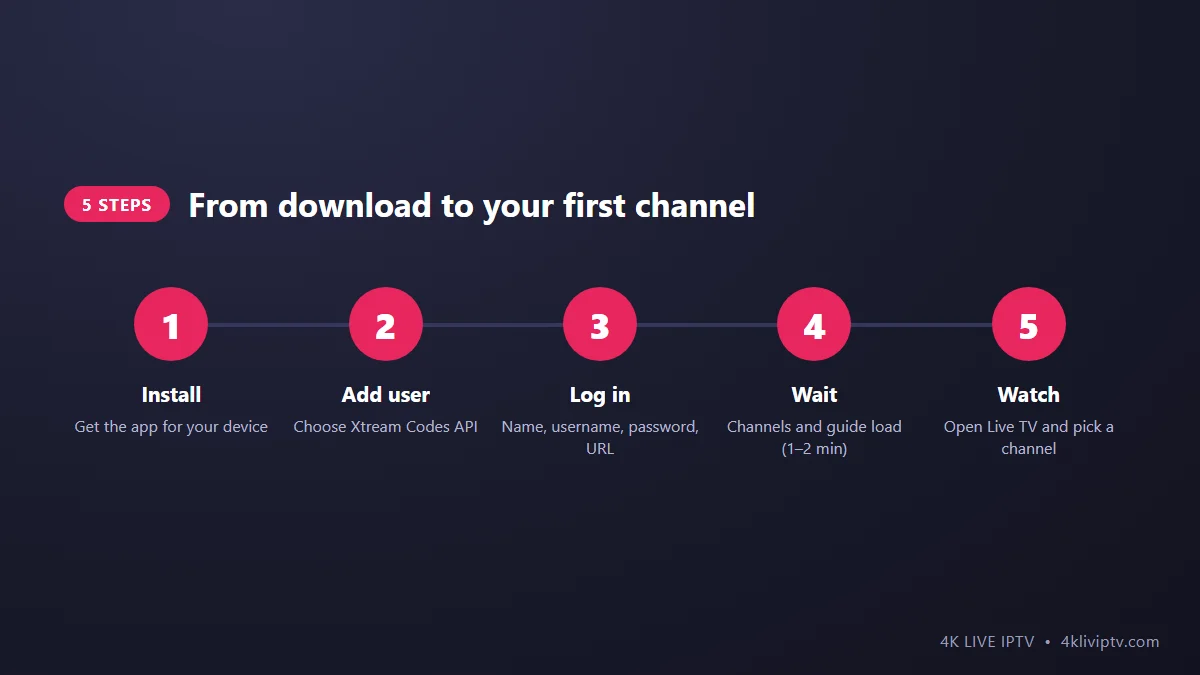
Step 1: Download IPTV Smarters Pro on Your Device
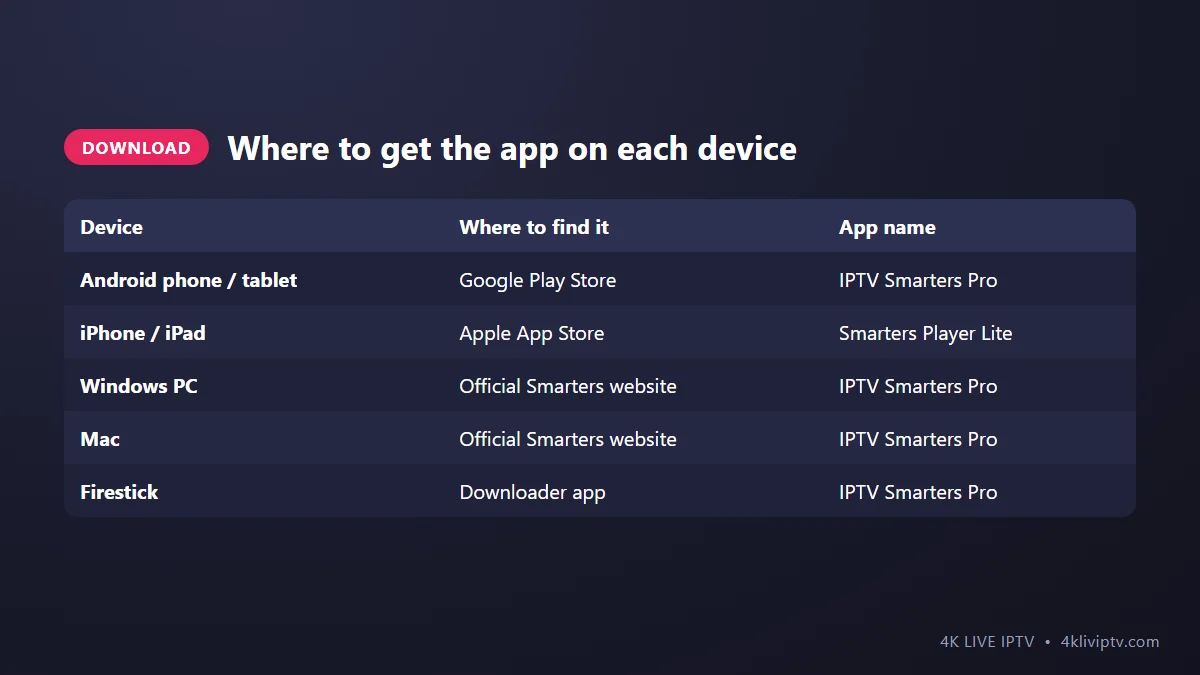
The app has a slightly different name depending on where you download it:
- Android phone or tablet: open the Google Play Store and search for “IPTV Smarters Pro”. If it is not available in your region, the official Smarters website offers the Android version for download.
- iPhone and iPad: in the App Store, the app is called Smarters Player Lite. It is made by the same developer and the login works the same way.
- Windows and Mac: download the desktop version from the official IPTV Smarters website. Avoid third-party download sites, they sometimes bundle extra software you don’t want.
Step 2: Choose “Login with Xtream Codes API”
When you open the app for the first time, accept the terms and you will see a few login options. Pick Login with Xtream Codes API. This is the recommended method for 4K Live IPTV because it loads live channels, movies, series and the TV guide in separate, tidy sections. If you are curious why, our article on M3U vs Xtream Codes explains the difference.
Step 3: Enter Your 4K Live IPTV Details
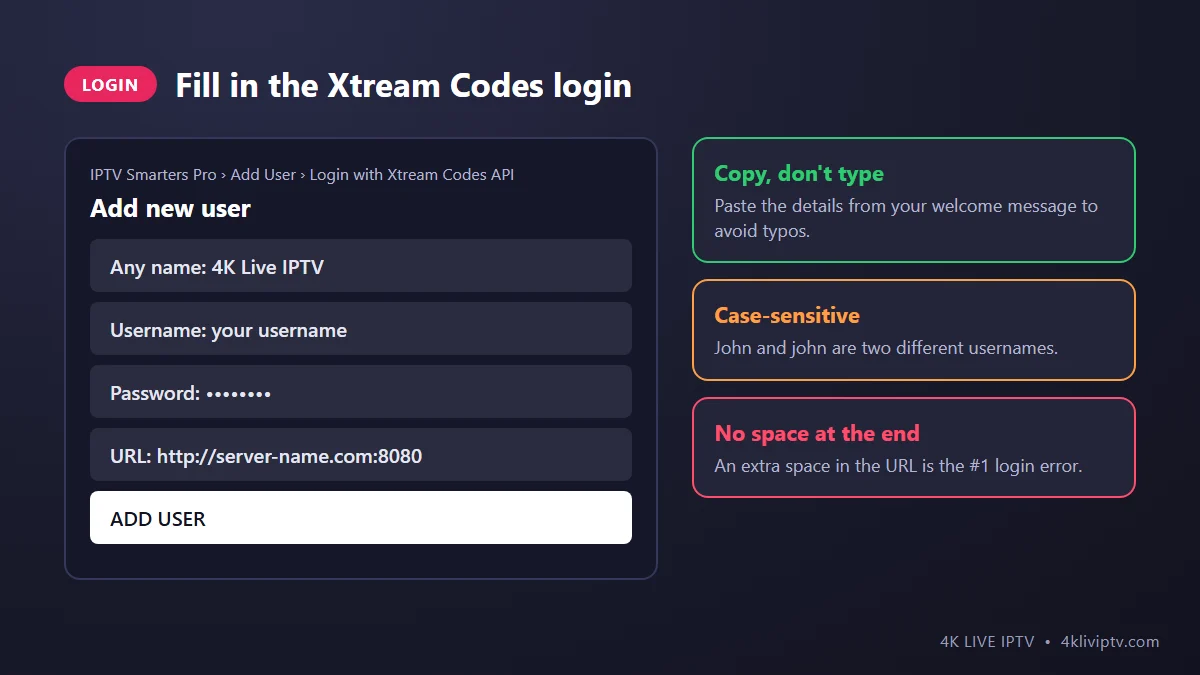
You will see four fields:
- Any name: this is only a label for you. Type “4K Live IPTV” or your name.
- Username: exactly as written in your welcome message.
- Password: same thing, capital letters matter.
- URL: the server address, starting with
http://. If your details include a port number (like :8080), keep it.
Tap Add User. On a phone, the easiest way is to long-press each field and paste the details from WhatsApp or email. Typing a server URL by hand is where most login errors come from.
Step 4: Let the Channels and TV Guide Load
After you log in, the app downloads your channel list, the movie and series library, and the TV guide. The first time, this takes one or two minutes. Leave the app open until you see the home screen with the Live TV, Movies and Series tiles. Closing it early is a common reason for “no channels” on the first try.
Step 5: Start Watching
Tap Live TV, choose a category on the left (for example USA Sports or USA News) and pick a channel. The channel starts in a small preview window. Tap it once more to go full screen. Movies and series work the same way from their own tiles on the home screen.
The Best IPTV Smarters Pro Settings for 4K Live IPTV
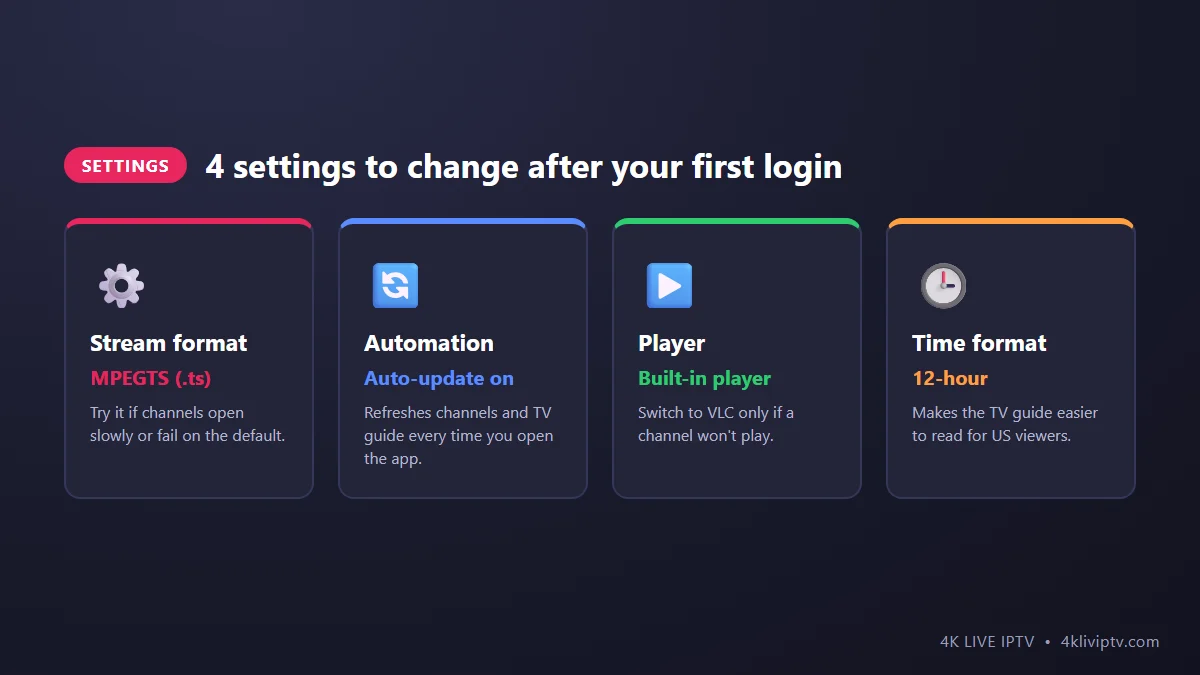
The default settings work, but four small changes make the app noticeably better. Open Settings from the home screen (the gear icon at the top):
- Stream Format: the default is fine for most people. If channels take a long time to open or sometimes fail, switch it to MPEGTS (.ts) and test again.
- Automation: turn on automatic updates for channels and the EPG. Every time you open the app, it refreshes the list, so new channels and correct program times appear without you doing anything.
- Player Selection: keep the built-in player. If one specific channel shows a black screen, try switching to VLC (it needs to be installed) for that channel.
- Time Format: set it to 12-hour if you prefer reading the TV guide that way.
Useful Features Most People Miss
- Favorites: long-press a channel (or press OK and hold on a TV remote) to add it to favorites. Your favorites appear as their own category at the top, so you don’t scroll through hundreds of channels every evening.
- Search: the magnifying glass in Live TV and Movies saves a lot of time when you know what you want.
- Catch-up: channels with a small clock icon let you go back and watch shows from previous days. Our guide on EPG and catch-up TV shows how.
- Multi-screen: on tablets and computers you can watch up to four channels at once on one screen. Each one counts as a connection, so check how many your plan allows.
- Several devices, one login: you can install the app on your phone and your PC with the same 4K Live IPTV details. Just remember your plan sets how many can play at the same time.
Common IPTV Smarters Pro Problems
“Invalid username or password”
Check for a space at the end of the URL, a missing http:// or a wrong capital letter. If everything looks right, confirm that your plan is still active.
The app logs in but shows no channels
Wait for the first download to finish, then use the refresh option on the home screen. If you used an M3U link instead of Xtream Codes, delete the user and add it again with the Xtream Codes option.
A channel shows a black screen
Change the Stream Format to MPEGTS, or switch the player. For more fixes, see our 4K Live IPTV troubleshooting guide. Most of the fixes there work on phones and PCs too.
Freezing during live sports
That is almost always the connection, not the app. Follow our guide on fixing buffering.
Frequently Asked Questions
Is IPTV Smarters Pro free?
Yes, the app itself is free to download and use. You only pay for your 4K Live IPTV subscription, which provides the channels.
Why can’t I find IPTV Smarters Pro on my iPhone?
On Apple devices it is listed as Smarters Player Lite. The login steps in this guide are the same.
Can I use IPTV Smarters Pro on my Smart TV?
It depends on the brand. On Android TV and Google TV it works well. On Samsung and LG, other apps are usually a better choice. See our list of the best apps for Samsung and LG Smart TVs.
Do I need to log in again on every device?
Yes. Each device has its own copy of the app, so you enter your 4K Live IPTV details once per device. After that, the app remembers you.
Wrapping Up
That’s the whole setup: download the app, choose Xtream Codes, paste your details, let it load and start watching. Change the four settings above and IPTV Smarters Pro becomes a fast, simple way to enjoy 4K Live IPTV on your phone, tablet or computer. If something does not work, send our team a screenshot on WhatsApp and we will tell you exactly what to change.
Need help with your IPTV?
Our team is available 24/7 to help you install and use your subscription on any device.
CONTACT US ON WHATSAPP