Roku is one of the most popular streaming platforms in America, so it is no surprise that “can I watch IPTV on Roku?” is one of the questions we hear most. The honest answer: yes, but not the way you can on a Firestick. Roku keeps its system closed, so most of the player apps that work with 4K Live IPTV cannot be installed on it. This guide explains why, and gives you three methods that really work, from the quickest to the one we recommend for everyday use.
Why Is IPTV Harder on Roku?
On Android-based devices like the Fire TV Stick or Google TV, you can install almost any player app, including IPTV Smarters Pro and TiviMate. Roku works differently. It only allows apps from the Roku Channel Store, and it does not let you sideload apps from outside it. The popular IPTV players are not in that store.
You may find a few M3U player apps in the Roku store from time to time. They come and go, many are paid, and in our experience they are slow with large channel lists and rarely have a proper TV guide. With a service the size of 4K Live IPTV (over 26,000 channels), they struggle. So we won’t send you down that road. Here is what works better.
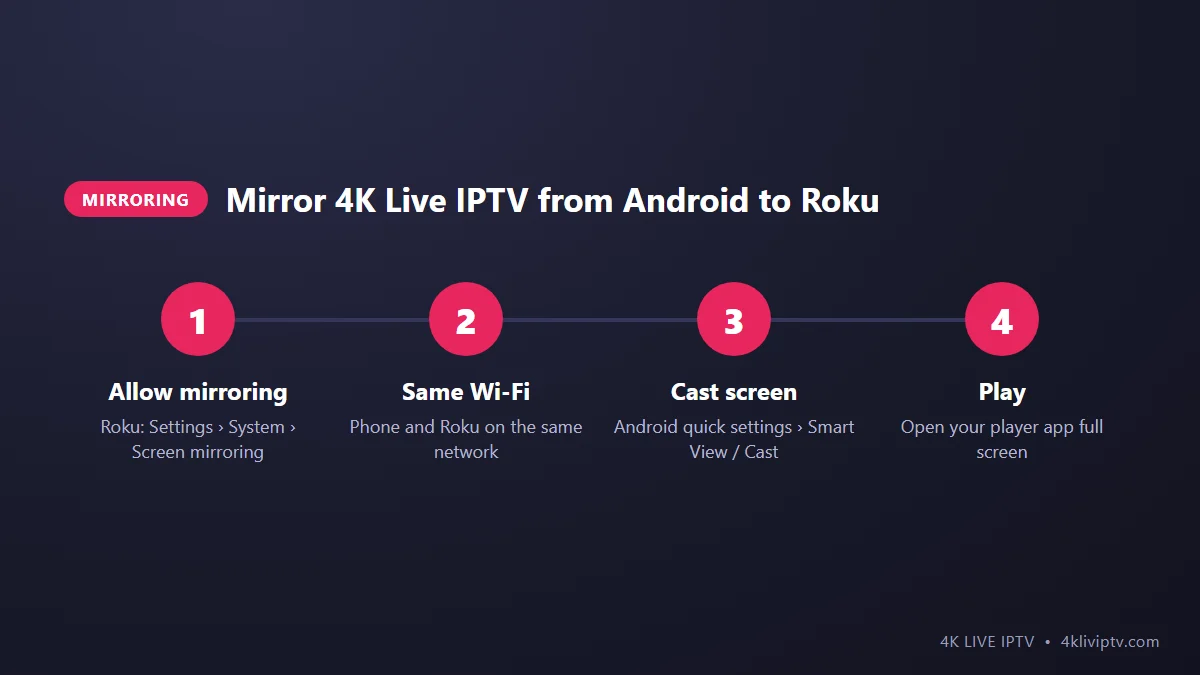
Method 1: Screen Mirroring From an Android Phone or Windows PC
Most Roku devices and Roku TVs support screen mirroring from Android phones and Windows computers. Your phone runs the 4K Live IPTV app, and the Roku simply shows what is on the phone screen.
- On the Roku, go to Settings › System › Screen mirroring and set the mode to “Prompt” or “Always allow”.
- Connect your phone and the Roku to the same Wi-Fi network.
- On Android, open the quick settings panel and tap Smart View, Cast or Screen mirroring (the name depends on the brand). Choose your Roku. On Windows, press Windows + K and select the Roku.
- Open IPTV Smarters Pro on the phone (our Smarters setup guide shows how), start a channel and switch to full screen.
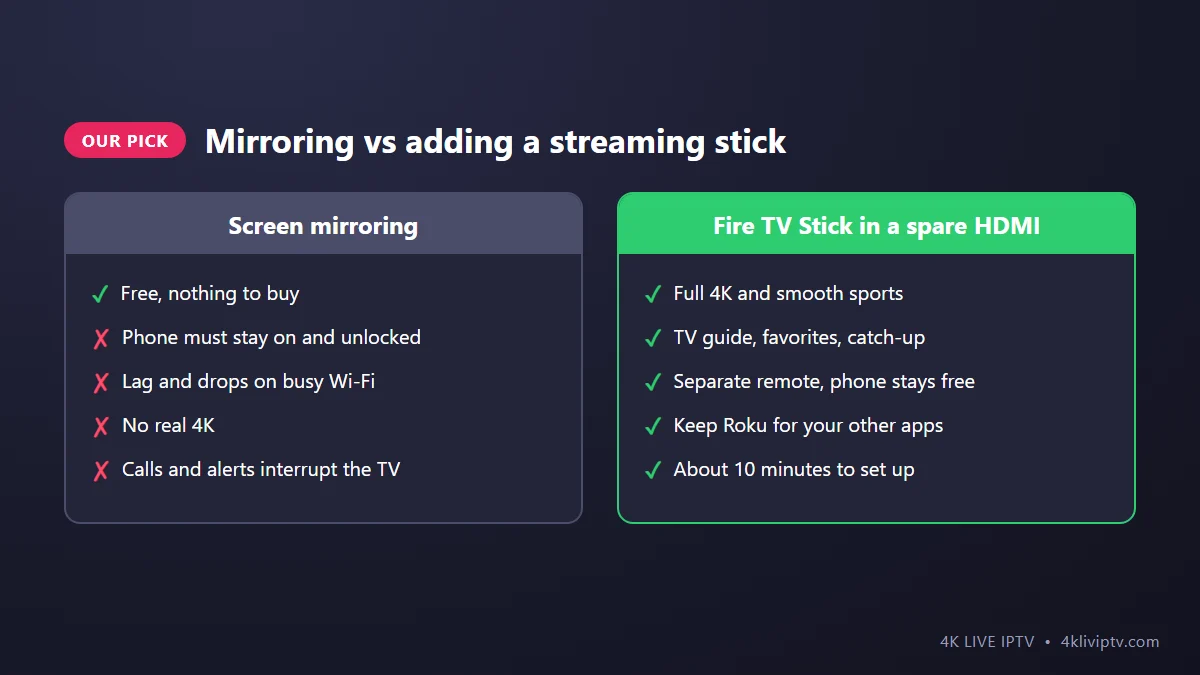
Good for: trying things out, or the occasional show. Not great for: a whole evening of sports. The phone has to stay on, notifications pop up on the TV, and mirroring tops out around Full HD with a small delay. On busy Wi-Fi it can stutter.
Method 2: AirPlay From an iPhone, iPad or Mac
Many recent Roku devices and Roku TVs support Apple AirPlay. If you see Apple AirPlay and HomeKit in the Roku settings, you can use it.
- On the Roku, open Settings › Apple AirPlay and HomeKit and make sure AirPlay is on.
- Put the iPhone and the Roku on the same Wi-Fi.
- Open Smarters Player Lite on the iPhone and log in with your 4K Live IPTV details.
- Open Control Center, tap Screen Mirroring and pick the Roku.
The pros and cons are the same as Method 1: quick and free, but your phone is tied up and the picture is not true 4K.
Method 3: Add a Fire TV Stick or Google TV Device (Our Recommendation)
This is the method we suggest to almost every Roku owner who wants to watch 4K Live IPTV every day. Your Roku TV has more than one HDMI port. Plug a Fire TV Stick 4K Max or a Google TV streaming device into a free port, and you have a device that runs every IPTV player properly, with real 4K, a full TV guide and its own remote.
- You keep Roku for Netflix, Hulu and everything else you already use.
- You switch to the stick’s HDMI input for live TV. Most Roku TVs let you rename that input to “4K Live IPTV” so it is easy to find on the home screen.
- Setup takes about ten minutes: follow our Firestick installation guide, then set up TiviMate for the best guide-style experience.
If you have a Roku streaming stick on an older TV, the same idea applies: replace or add a stick in a second HDMI port.
Which Method Should You Choose?
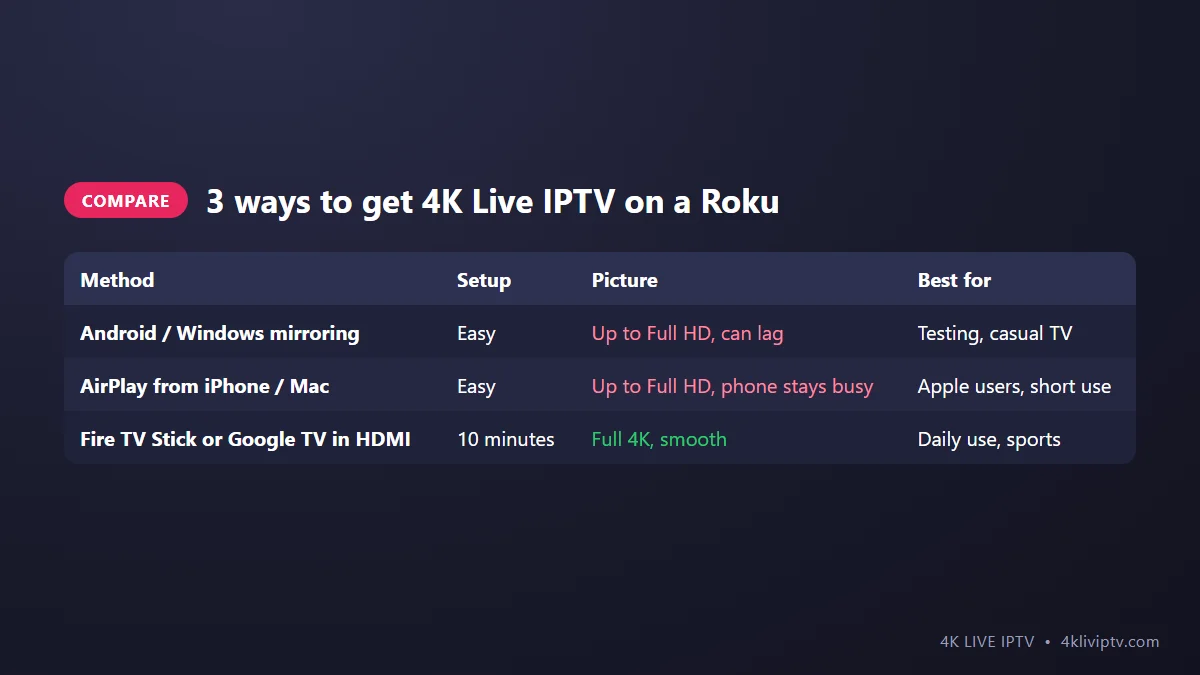
- Just want to test 4K Live IPTV tonight? Use screen mirroring or AirPlay with your phone. The 24-hour test is perfect for that.
- Want to watch every day, especially sports? Add a streaming stick. It is the only way to get smooth 4K with a real TV guide on a Roku TV.
Tips for Better Mirroring
- Use the 5 GHz Wi-Fi network for both the phone and the Roku.
- Turn on Do Not Disturb on the phone so messages don’t appear on the TV.
- Plug the phone into a charger. Mirroring video drains the battery fast.
- Close other apps on the phone before you start.
- If the picture freezes, the cause is usually Wi-Fi. Our guide on fixing buffering has more tips.
Frequently Asked Questions
Is there an IPTV Smarters app for Roku?
No. IPTV Smarters Pro and TiviMate are not available in the Roku Channel Store, and Roku does not allow installing apps from outside the store.
Can I watch 4K Live IPTV in 4K on Roku?
Not with mirroring or AirPlay. Those methods usually top out at Full HD. For real 4K, connect a Fire TV Stick 4K or a Google TV device to your Roku TV.
Does mirroring use one of my connections?
Yes. The phone is the device playing the stream, so it counts as one connection on your 4K Live IPTV plan.
Will my Roku TV remote control the Firestick?
Usually not for menus, but HDMI-CEC lets one remote turn both on and switch inputs on many TVs. The Firestick comes with its own remote anyway.
The Bottom Line
Roku is great for regular streaming apps, but it was not built for IPTV players. Mirroring from your phone works for a quick test. For everyday 4K Live IPTV with a proper guide and real 4K quality, a streaming stick in a spare HDMI port is the simple, reliable fix. If you are unsure which device to buy, message our team on WhatsApp and we will point you to the right one for your TV.
Need help with your IPTV?
Our team is available 24/7 to help you install and use your subscription on any device.
CONTACT US ON WHATSAPP