
If you watch on a TV, TiviMate is the app we recommend most. It looks and feels like a real cable box guide: channels down the side, programs across a timeline, and it zaps quickly even on a Firestick. Setting up 4K Live IPTV in TiviMate takes a few minutes, and a handful of settings make a real difference for 4K and live sports. This guide walks through both.
Which Devices Can Run TiviMate?
TiviMate is built for Android-based TV devices: Fire TV Stick and Fire TV Cube (Fire OS), Android TV and Google TV boxes, Nvidia Shield, Chromecast with Google TV and TVs that run Google TV. It is not available for iPhone, Samsung Tizen, LG webOS or Roku. If you use one of those, look at our guide to IPTV apps for Samsung and LG or IPTV Smarters Pro instead.
On Google TV and Android TV, you can find TiviMate in the Google Play Store. On a Firestick it is installed with the Downloader app, the same way as in our Firestick installation guide.
How to Add 4K Live IPTV to TiviMate
- Open TiviMate and choose Add playlist. On the very first launch, the app asks you straight away. If you already have a playlist, go to Settings › Playlists › Add playlist.
- Select Xtream Codes login. This gives you live channels, movies, series and the TV guide in one go. (The M3U option works too, but the guide usually needs extra setup. Our M3U vs Xtream Codes article explains why.)
- Enter the server address, username and password from your 4K Live IPTV welcome message. Use the on-screen keyboard carefully, or install a remote app on your phone to type faster.
- Press Next. TiviMate checks the login and shows how many channels and movies it found. Give the playlist a name (for example “4K Live IPTV”) and press Done.
The first load, including the TV guide, can take a minute or two. After that, TiviMate opens directly on your channels.

The Best TiviMate Settings for 4K Live IPTV
Open the menu (press left on the remote, then the gear icon at the bottom) and go through these. They are the same settings our support team checks first when someone says TiviMate “feels slow”.
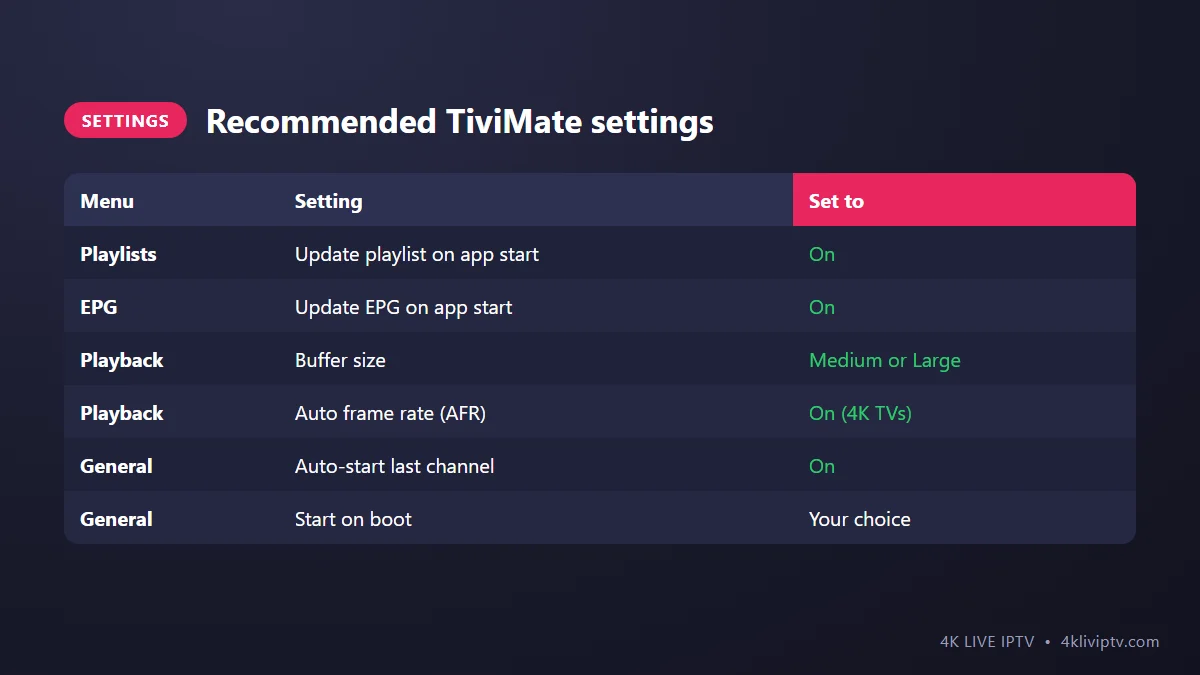
Playlists: update on app start
Settings › Playlists › select your playlist › turn on Update playlist on app start. New channels and changes appear automatically.
EPG: update on app start
Settings › EPG › turn on Update EPG on app start. This keeps the guide accurate, which matters if you use catch-up or recording. More about the guide in our EPG and catch-up guide.
Playback: buffer size
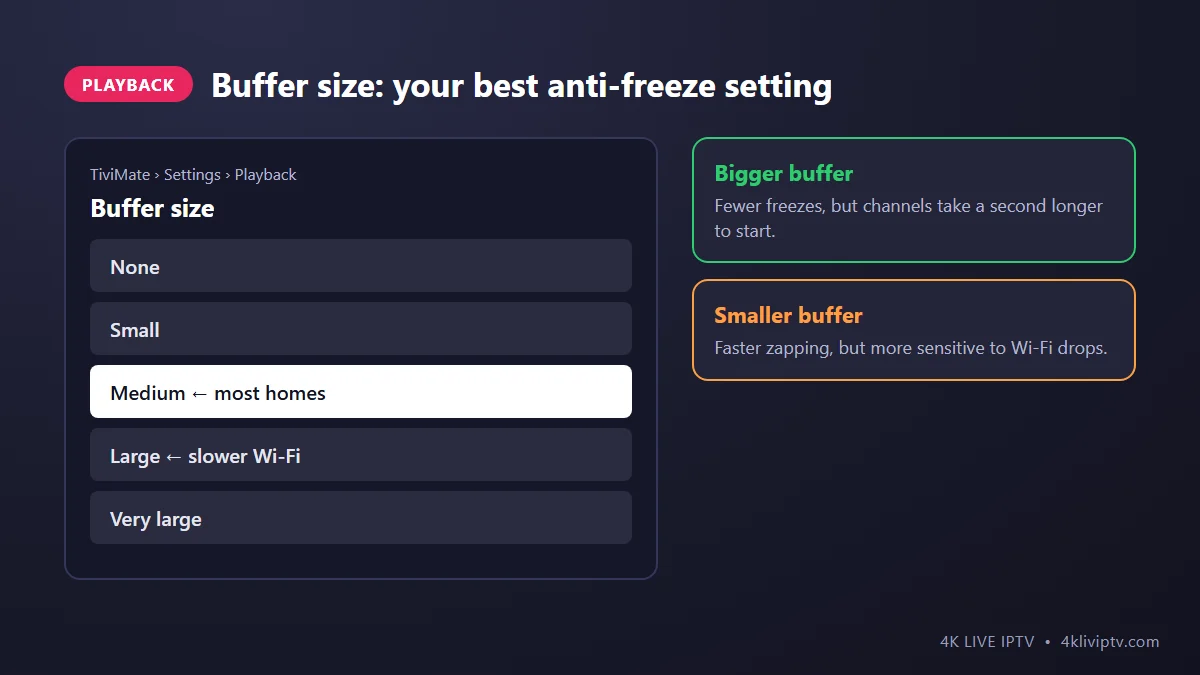
This is the most useful setting for live sports. Settings › Playback › Buffer size. “Medium” works for most homes. If you are on Wi-Fi far from the router and see short freezes, try “Large”. A bigger buffer means a channel takes a second longer to start, but it rides out small Wi-Fi drops without freezing.
Playback: auto frame rate (AFR)
If you have a 4K TV, turn on AFR. It switches your TV to the frame rate of the channel (for example 60 fps for US sports), which removes the small stutter you sometimes see in fast camera pans. If your TV screen goes black for a second when you change channels, that is AFR doing its job. If it bothers you, turn it off.
General: auto-start last channel
Settings › General › Auto-start last channel. TiviMate opens straight into the channel you were watching, like a regular TV.
TiviMate Free vs Premium: Is It Worth It?
The free version plays your 4K Live IPTV channels with the TV guide, which is enough to test everything. Premium unlocks the features that make TiviMate special: favorites, catch-up, recording, multi-view and several playlists. It is a small yearly fee or a one-time lifetime purchase, bought through the TiviMate Companion app on an Android phone.
Our honest take: if you watch TV every day, Premium pays for itself in comfort. Favorites alone save you from scrolling through thousands of channels every evening.

Tips to Get More Out of TiviMate
- Hide categories you never watch. Long-press a group in the channel list and choose to hide it. Fewer groups make zapping faster and the guide easier to read.
- Create a favorites group (Premium) with your 20 or 30 everyday channels. Set it as the first group so it opens by default.
- Use channel numbers. Type a number on the remote to jump straight to a channel, just like on cable.
- Record a game (Premium): open the TV guide, select the program and choose Record. Recordings are saved on the device, so keep some free storage.
- Don’t run two players at once. If IPTV Smarters is still playing in the background with the same login, it may use one of your connections.
Common TiviMate Problems and Fixes
“Error loading playlist”
Check the server address first: it must include http:// and the port if you have one. Then check that your 4K Live IPTV subscription is active.
The TV guide is empty
Go to Settings › EPG and press Update EPG. If it is still empty after a few minutes, delete the EPG source and let TiviMate re-add it from your Xtream Codes login.
A channel won’t play or shows a black screen
Try another channel to see if the problem is general. If it is only one, try its HD version. If many channels fail, follow the steps in our troubleshooting guide.
Short freezes during sports
Increase the buffer size one step, and read our guide to fixing buffering.
Frequently Asked Questions
Does TiviMate include channels?
No. TiviMate is only a player. Your channels, movies and TV guide come from your 4K Live IPTV subscription.
Can I use TiviMate on several TVs?
Yes. Install it on each device and add the same playlist. A Premium purchase can be used on several devices linked to the same account. How many can play at the same time depends on your 4K Live IPTV plan.
Is TiviMate better than IPTV Smarters?
On a TV, most people prefer TiviMate for its guide and speed. On phones, iPhones and computers, IPTV Smarters is the more practical choice because TiviMate is not available there.
Final Word
Add your playlist with Xtream Codes, turn on automatic updates, set the buffer to Medium and switch on AFR if you have a 4K TV. With those few changes, TiviMate becomes the closest thing to a premium cable box, powered by 4K Live IPTV. Need a hand with the setup? Message our team on WhatsApp with a photo of your screen.
Need help with your IPTV?
Our team is available 24/7 to help you install and use your subscription on any device.
CONTACT US ON WHATSAPP