

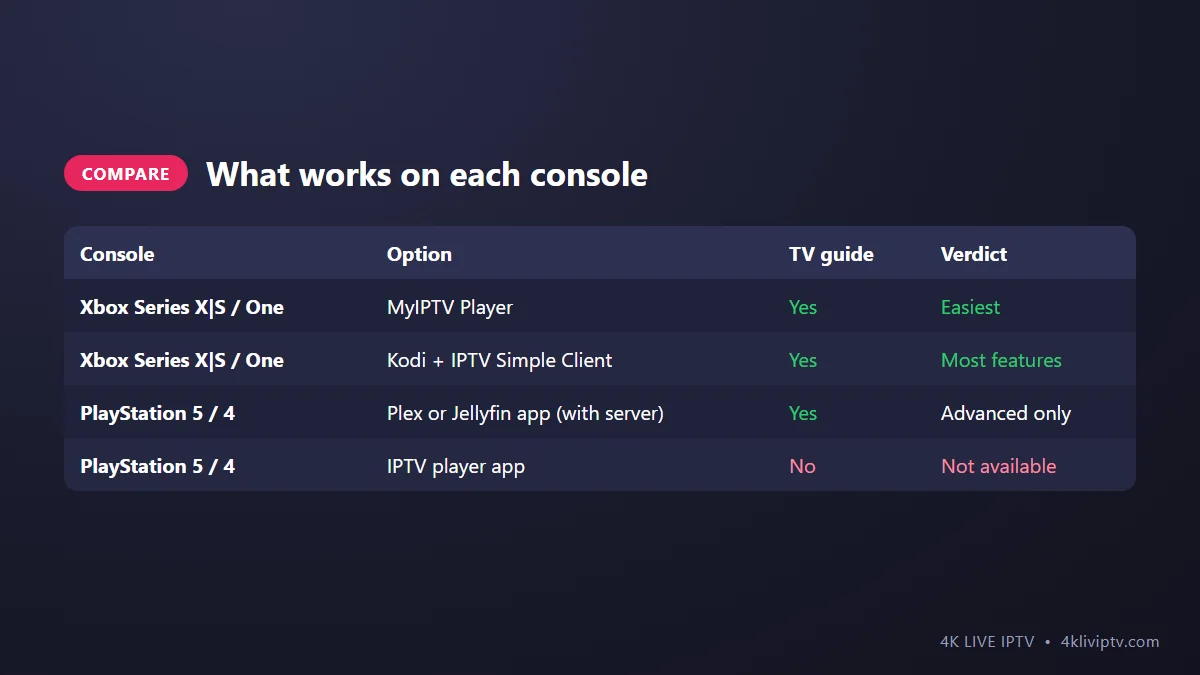
A lot of living rooms already have an Xbox or PlayStation plugged into the TV, so it is natural to ask: can the console play 4K Live IPTV too, without buying another device? On Xbox, yes, and it works quite well. On PlayStation, it is much more limited. Here is what works on each.
Quick Answer
Xbox Option 1: MyIPTV Player (Easiest)
MyIPTV Player is a free app from the Microsoft Store that runs on Xbox as well as Windows. It uses your 4K Live IPTV M3U link and supports a TV guide.
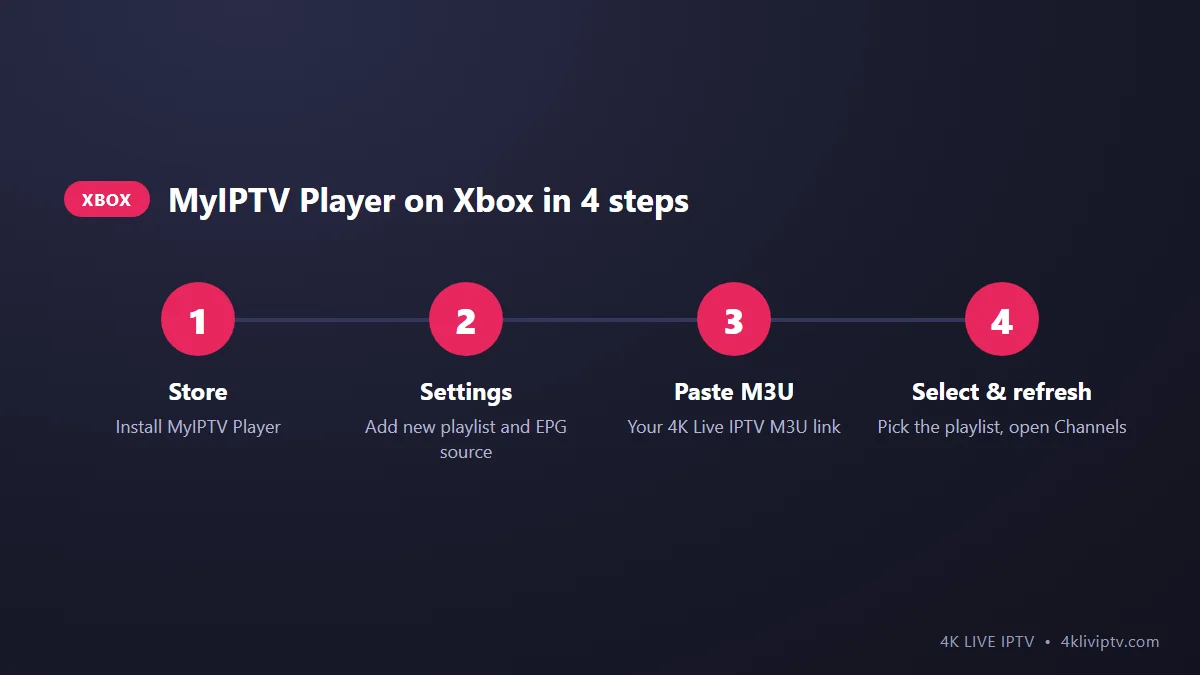
- On the Xbox, open the Microsoft Store, search for MyIPTV Player and install it.
- Open the app and go to Settings › Add new playlist and EPG source.
- Enter a name, paste your M3U link in the remote channel list field, and choose Add remote list. Typing a long link with a controller is painful, so plug in a USB keyboard or use the Xbox app on your phone to type.
- Back in Settings, select your playlist under “Select channel playlist”, then refresh. Go to Channels and start watching.
Your M3U link is in your welcome message, or our support team can send it. If you want to understand what it is, read M3U vs Xtream Codes. The setup is the same as the Windows version described in our PC and Mac guide.
Xbox Option 2: Kodi With IPTV Simple Client (Most Features)
Kodi is a free media center available in the Microsoft Store for Xbox. With its built-in PVR add-on, it becomes a full live TV player with a guide.
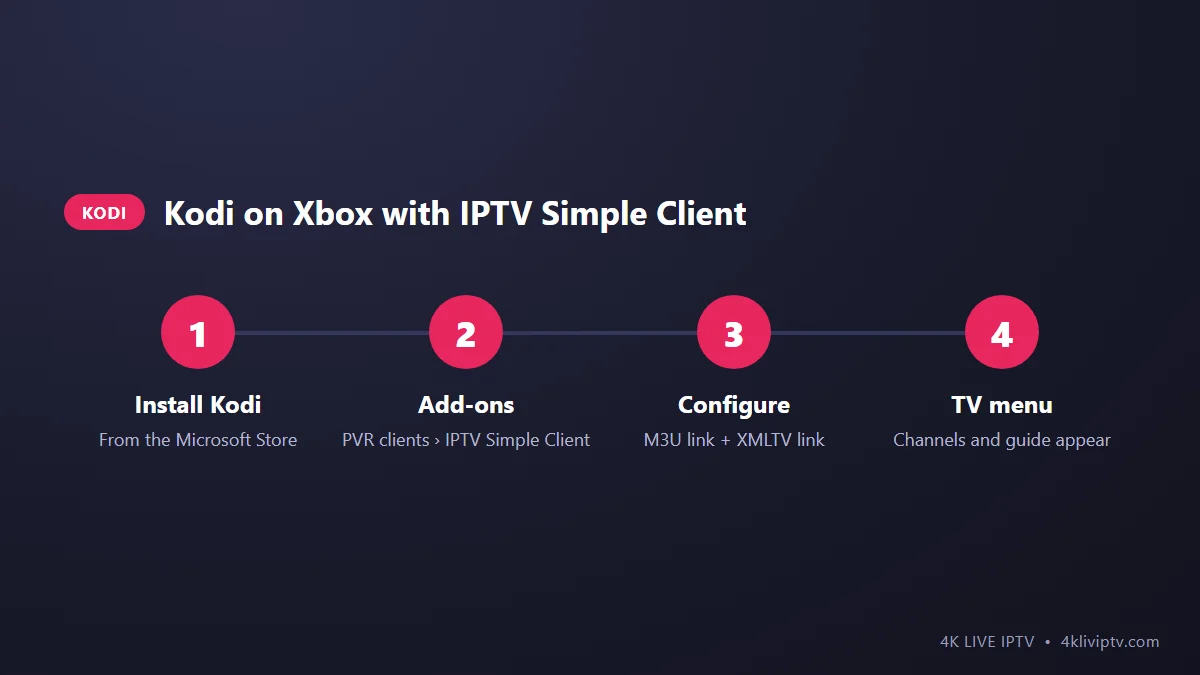
- Install Kodi from the Microsoft Store and open it.
- Go to Add-ons › My add-ons › PVR clients › PVR IPTV Simple Client and enable it.
- Open its Configure menu. Under General, set the location to Remote path and paste your M3U link. Under EPG, paste your XMLTV guide link.
- Restart Kodi. A TV entry appears on the home screen with your channels and guide.
Tip: Kodi can be slow with a huge playlist. Ask our team for a lighter list with only the categories you watch, and it will load much faster.
What About PlayStation 5 and PS4?
Sony’s store has no IPTV players that accept M3U or Xtream Codes logins, and PlayStation doesn’t allow installing apps from outside the store. So there is no direct way to watch 4K Live IPTV on a PS5 or PS4.
The only realistic option is advanced: if you run a Plex or Jellyfin media server at home with your 4K Live IPTV channels added, you can watch them through the Plex app on PlayStation (Jellyfin availability on PlayStation is limited). We explain that server setup in our guide to 4K Live IPTV with Plex and Jellyfin.
For most PlayStation owners, the simpler fix is a $40 to $60 streaming stick in another HDMI port. See our best devices guide.
Is a Console a Good IPTV Box?
The good: it is already connected to your TV, it’s powerful, and many consoles are wired to the router with Ethernet, which is great for 4K streams.
The not so good: consoles use more electricity than a streaming stick, the controller is clumsy for zapping, and the app choice is small. No TiviMate, no IPTV Smarters. If you watch live TV every day, a dedicated device like a Fire TV Stick with TiviMate is more comfortable.
Frequently Asked Questions
Can I install IPTV Smarters or TiviMate on Xbox?
No. Use MyIPTV Player or Kodi instead.
Does watching on Xbox use one of my connections?
Yes, like any other device. Check your plan for the number of screens at the same time.
Can the Xbox play 4K channels?
Xbox Series X and One X/S can output 4K. Smoothness depends on the app and your connection. Use Ethernet for 4K sports.
My channels freeze on Xbox. What should I do?
Plug in a network cable if you can, and follow our buffering guide.
Final Word
Xbox owners can enjoy 4K Live IPTV today with MyIPTV Player (easy) or Kodi (more features). PlayStation owners will need a media server or, more simply, a streaming stick. If you want your M3U or XMLTV link to get started, send our team a message on WhatsApp.
Need help with your IPTV?
Our team is available 24/7 to help you install and use your subscription on any device.
CONTACT US ON WHATSAPP